
Luxembourg’s public buyers publish their tenders on the Portail des marchés publics, usually called PMP (pmp.lu and marches.public.lu). For contracts above the European thresholds, your offer can only be submitted there: electronically, and signed. This guide goes through the steps and the mistakes that most often get an offer rejected. The screenshots come from PMP’s test tender, so the labels are in French; what to click is outlined in blue.
What PMP is, and when electronic submission is mandatory
PMP is the Luxembourg state’s secure platform for public procurement. Buyers publish their contract notices and tender documents on it, companies ask questions and exchange messages with the buyer, and offers are submitted and opened electronically, with a signature, encryption and a time stamp.
Since 18 October 2018, electronic communication is mandatory for contracts above the European thresholds, from the publication of the notice to the order. That includes submitting your offer. For 2026 and 2027, the thresholds are, excluding VAT:
- supplies and services: €140,000 for central government, €216,000 for other public buyers
- works: €5,404,000
- social and other specific services: €750,000
Below these amounts, the contract notice says whether you can submit electronically.
Before you start: an account and a way to log in
Click “Se connecter” on pmp.lu. You land on eAccess, the Luxembourg state’s log-in page, which offers four ways to log in:
- a username and password
- a LuxTrust product or a Luxembourg electronic identity card
- the GouvID app on your phone
- a digital identity from another EU country (eIDAS)
No account yet? Choose username and password, then “S’enregistrer” (register). You pick a username and a password and give your name and e-mail address.
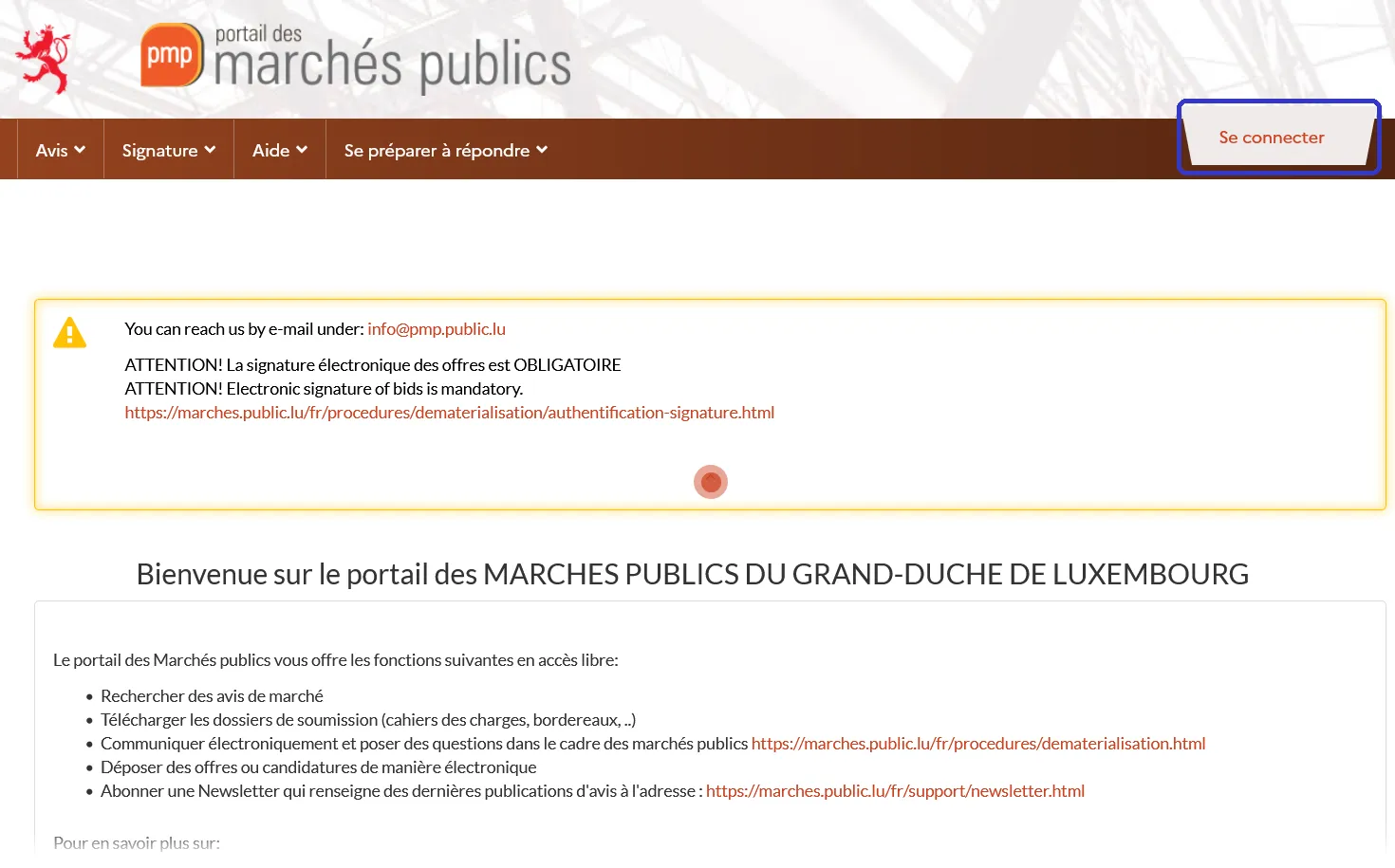
1. On pmp.lu, click “Se connecter” (log in).
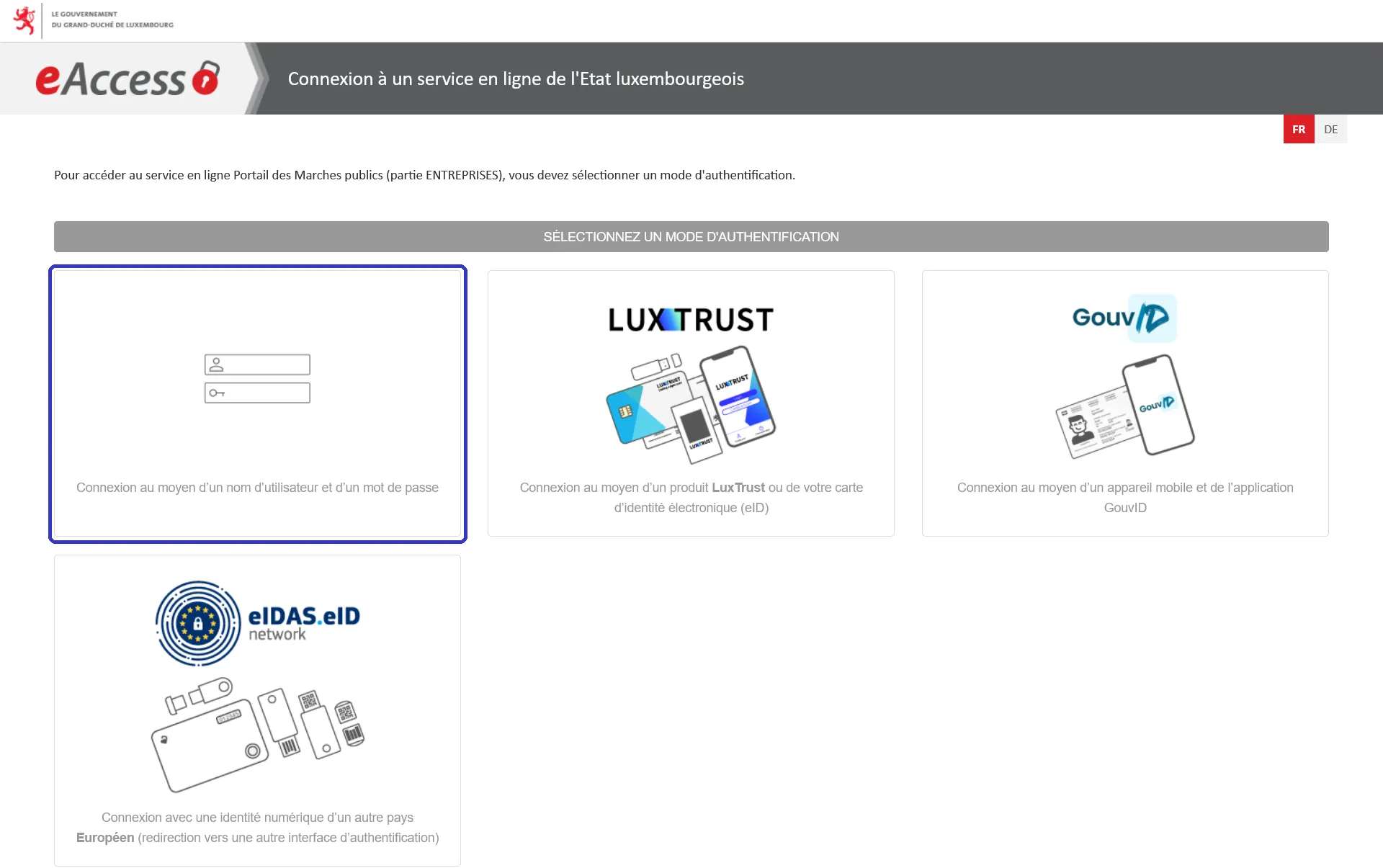
2. eAccess, the state’s log-in page. To create an account, choose username and password.
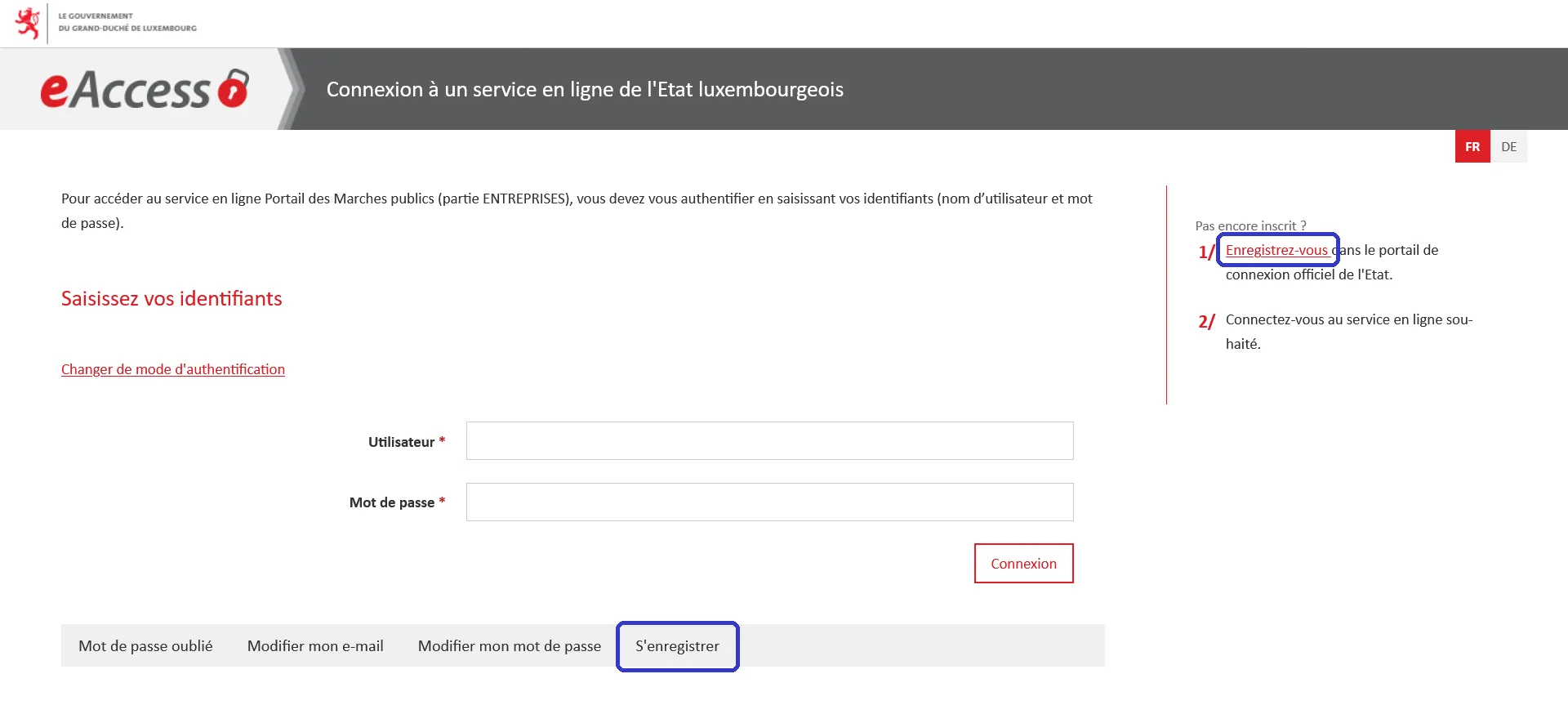
3. No account yet? Click “S’enregistrer” (register). With an account, log in here.
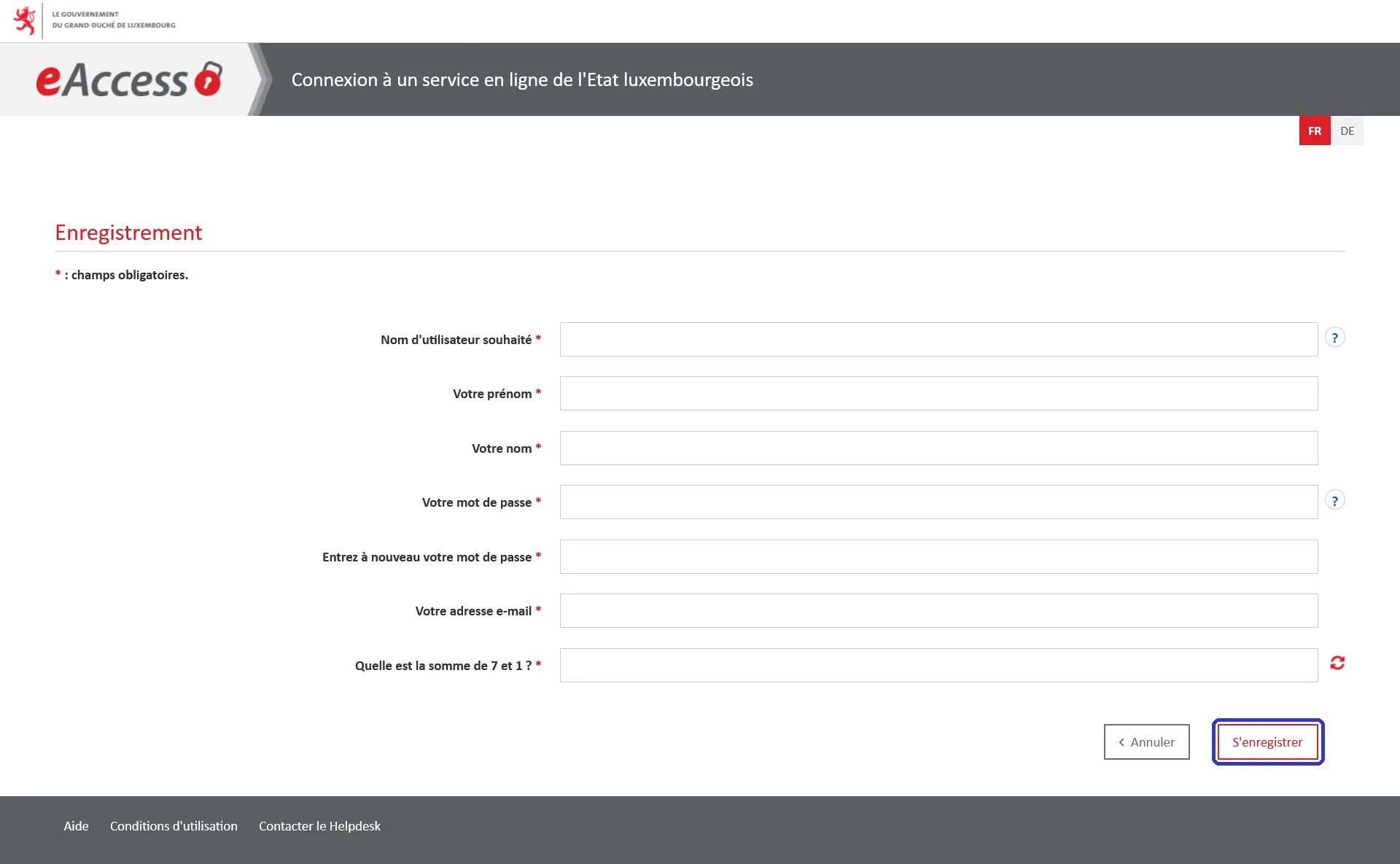
4. Fill in the form and click “S’enregistrer”.
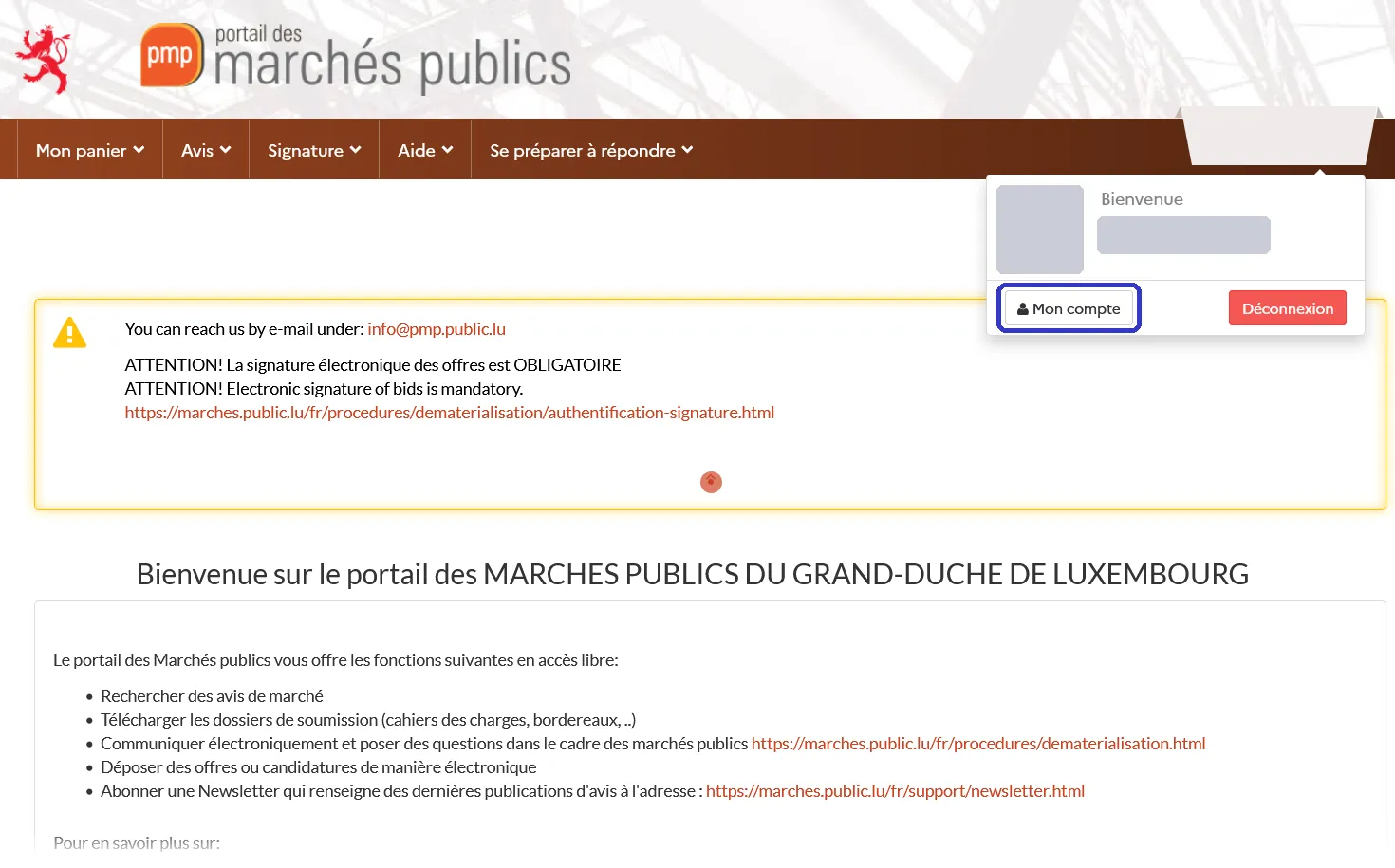
5. Your company account: click your name, top right, then “Mon compte”.
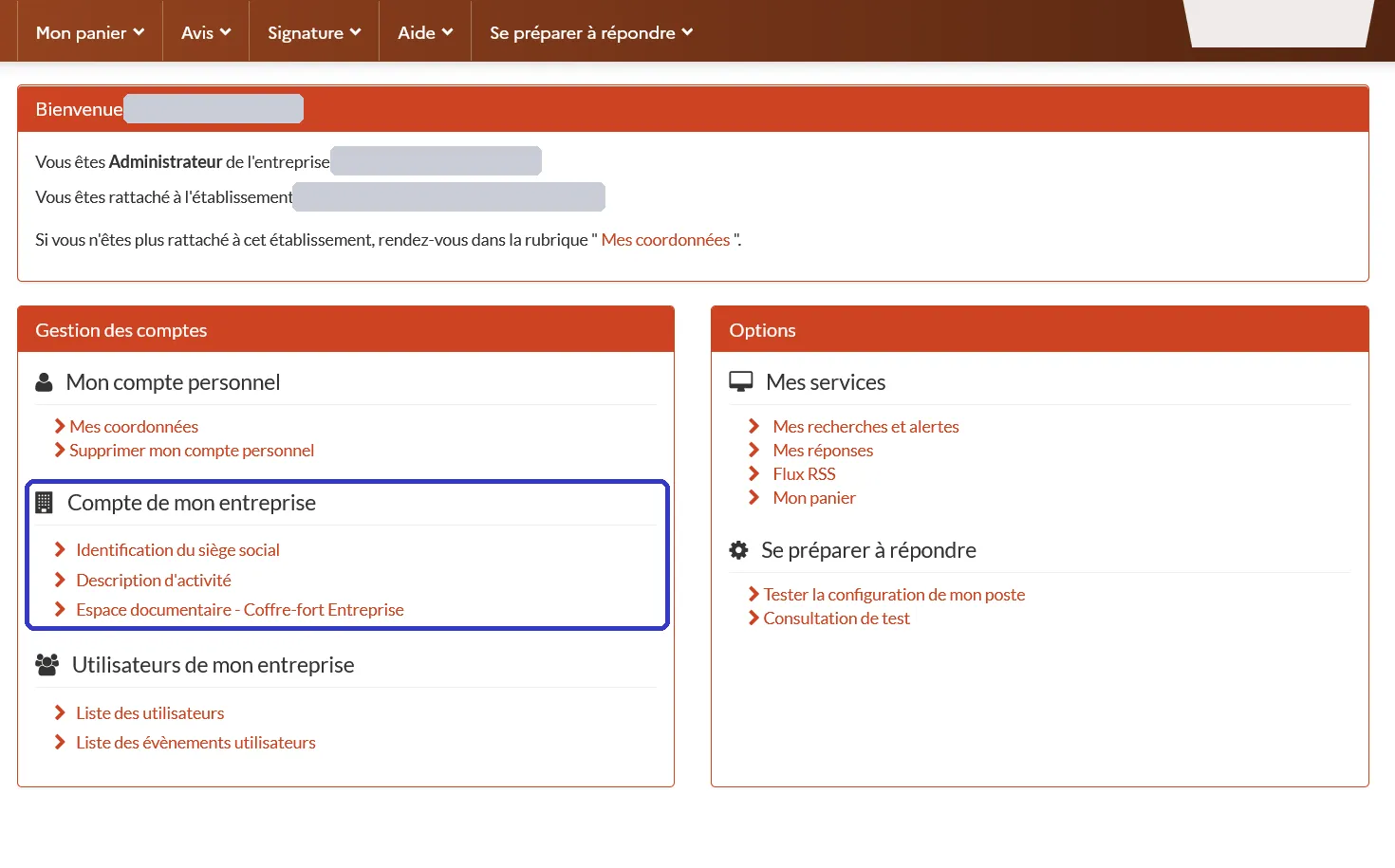
6. “Compte de mon entreprise”: the head office, the activity description and a document vault. Correct here what PMP shows before each submission.
PMP links your user account to a company account: the company name, its VAT number or national registration number, and its address. You manage it under your name, top right, > “Mon compte” > “Compte de mon entreprise”. Enter the company name exactly as it is registered: it appears on everything you submit, and PMP shows it again before every submission. In your contact details, use a shared company e-mail address rather than a personal one: the acknowledgement of receipt is sent there.
Logging in is not the same as signing. A username and password get you into PMP, but your offer still needs a qualified electronic signature (next section).
The qualified electronic signature
Every offer must be signed electronically before you submit it. Application documents (the first stage of some procedures) do not have to be signed. PMP accepts:
- a LuxTrust Smartcard or Signing Stick
- a Luxembourg identity card with a card reader
- a qualified certificate for electronic signature from the EU Trusted List
The official list is on marches.public.lu. The company’s legal representative signs, not each member of the team.
Companies from Belgium, France and elsewhere: a certificate counts if it is qualified for electronic signature and listed on the EU Trusted List. To check yours, open the EU/EEA Trusted List Browser, choose “Search by type”, tick “Qualified certificate for electronic signature” and your country, and look for your certificate provider with “QCert for ESig” among the currently active providers. The signature certificate on the Belgian eID card is a qualified certificate, issued by “Citizen CA”. To use it, first install the free eID software: it lets your computer read the card. LOCAL TRUST FORCE then lists your certificate and signs with it (tested with a Belgian eID on 8 November 2026). As with any certificate, check your signed file with “Vérifier la signature” before you submit (see below).
To sign, PMP uses LOCAL TRUST FORCE, a small program you install on your computer (it used to be called Mon assistant marchés publics, or MAMP). Start it from the menu Signature > “Signer un document”. The first time, PMP shows it as “Hors ligne” (not running): the download links for Windows, macOS and Linux are under “Afficher plus d’informations”. The signature tokens it creates are saved automatically in the same folder as the signed file. You can also sign a PDF directly in your PDF reader, but only with one of the devices above. Test your set-up well before the week of the deadline.
Under Signature > “Vérifier la signature” you can check a signed file before you submit it: add the document and its signature file (for a PDF, the PDF itself) and click “Vérifier la signature”. A file signed with an ordinary certificate shows as “Signature invalide”, with the note “Non qualifié eIDAS”. What to look for on the result page:
- “Résultat du contrôle de signature du fichier”: the overall result. “KO” or “Signature invalide” means PMP doesn’t accept the signature.
- “Certificat émis à” and “Certificat émis par”: who signed, and the provider that issued the certificate (for a Belgian eID, “Citizen CA”).
- The checks (“Période de validité”, “Chaîne de certification”, “Non révocation”, “Non répudiation”): each needs a green tick. A red cross is a problem to fix before you submit.
- “Informations complémentaires”: must not say “Non qualifié eIDAS”.
A PDF signed without a visible signature looks unchanged when you open it: the signature sits inside the file, and this check is the way to see it.
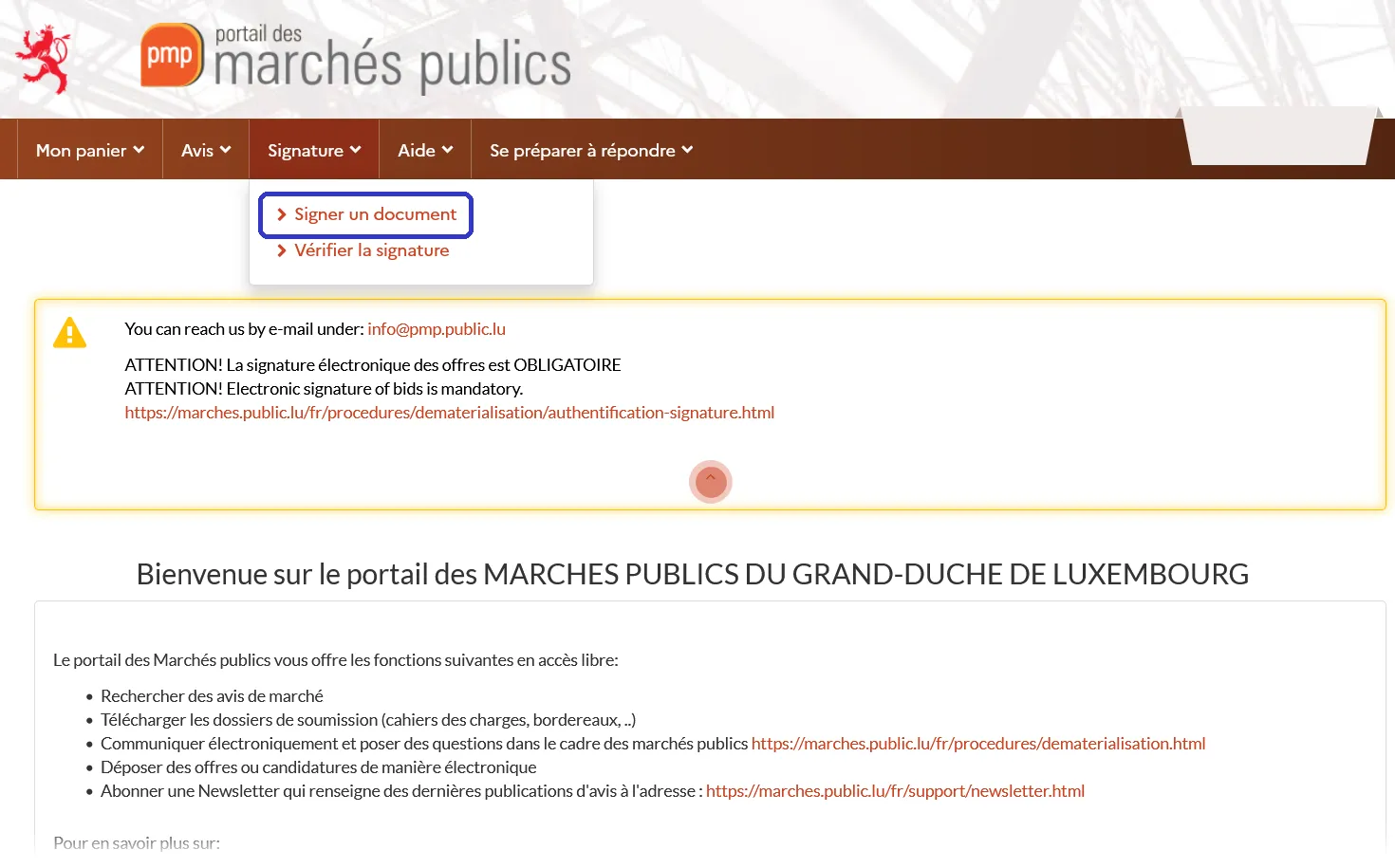
1. Signature > “Signer un document” starts LOCAL TRUST FORCE to sign a file.
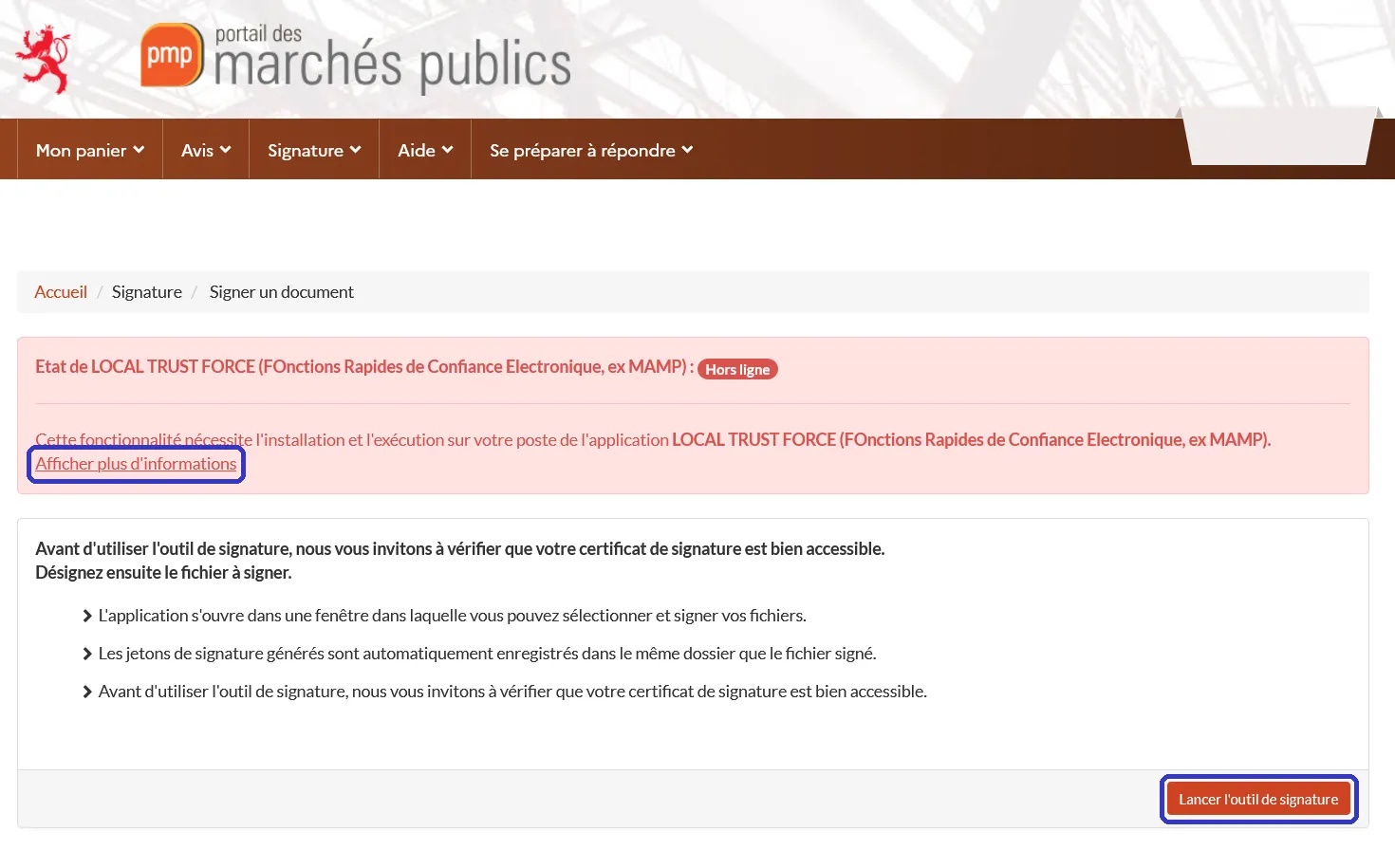
2. “Signer un document”: “Lancer l’outil de signature” opens LOCAL TRUST FORCE. “Hors ligne” means it isn’t installed or running yet.
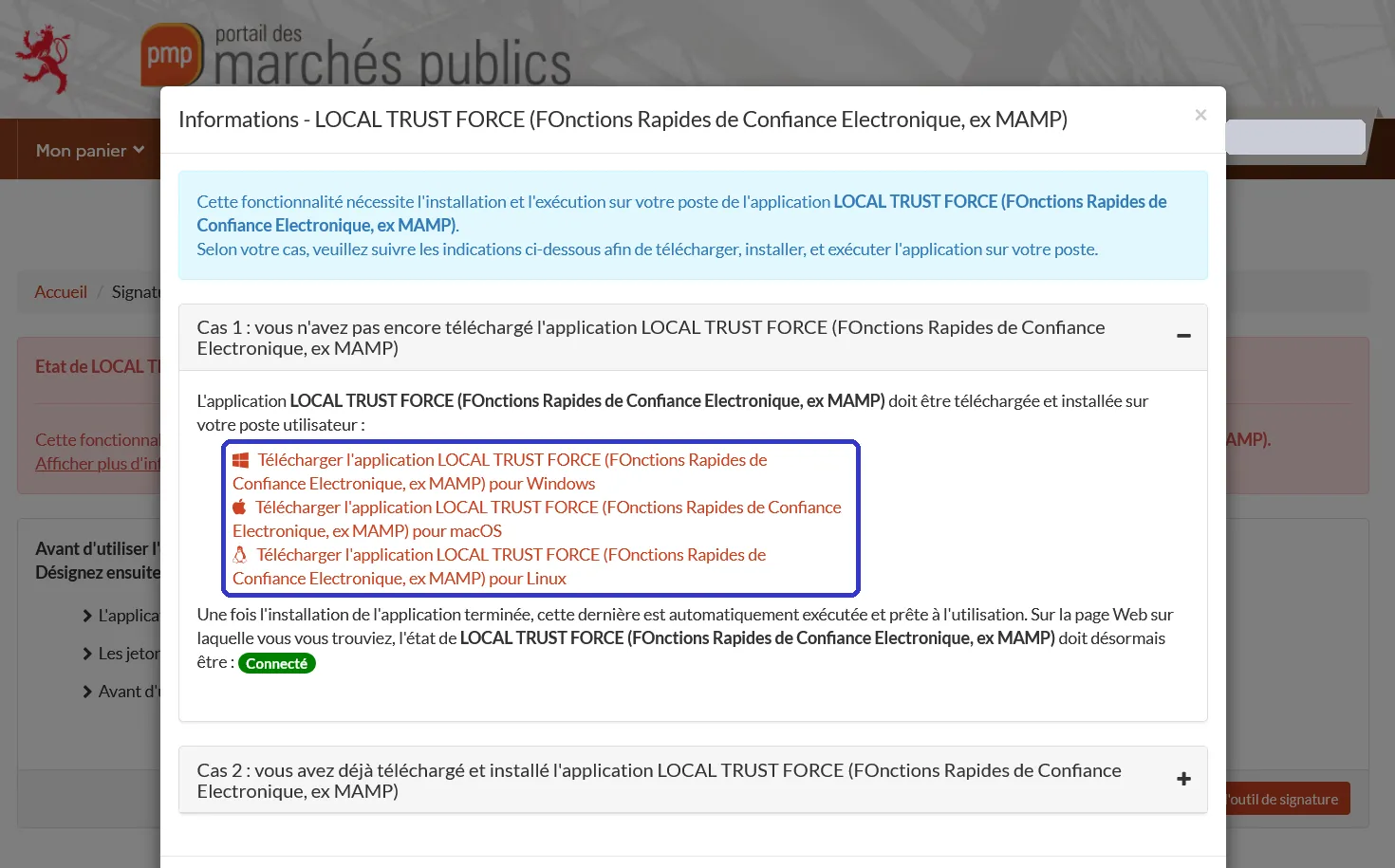
3. Under “Afficher plus d’informations”: download LOCAL TRUST FORCE for Windows, macOS or Linux. Once installed, the status turns “Connecté”.
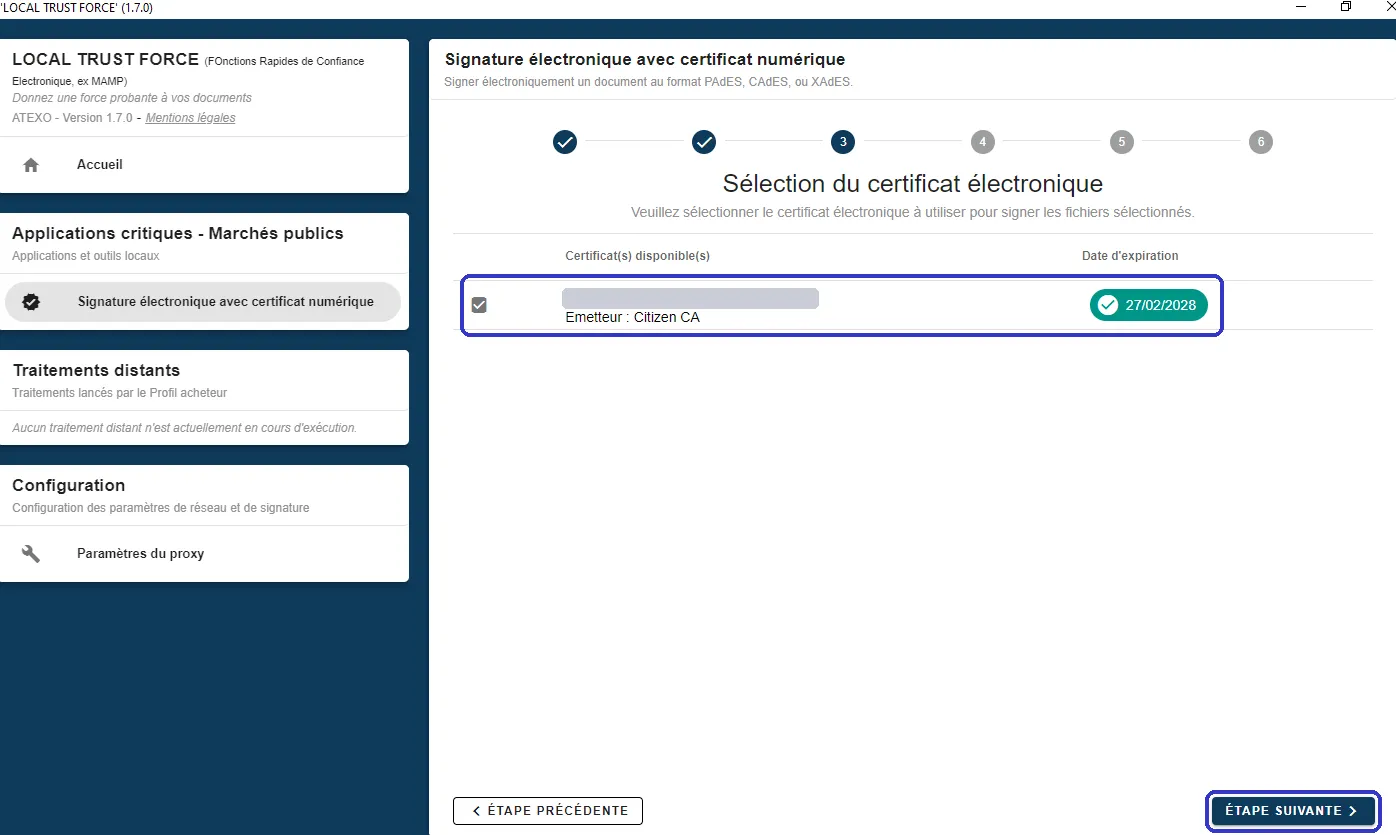
4. In LOCAL TRUST FORCE: choose your files, then your certificate. With a Belgian eID it is issued by “Citizen CA”.
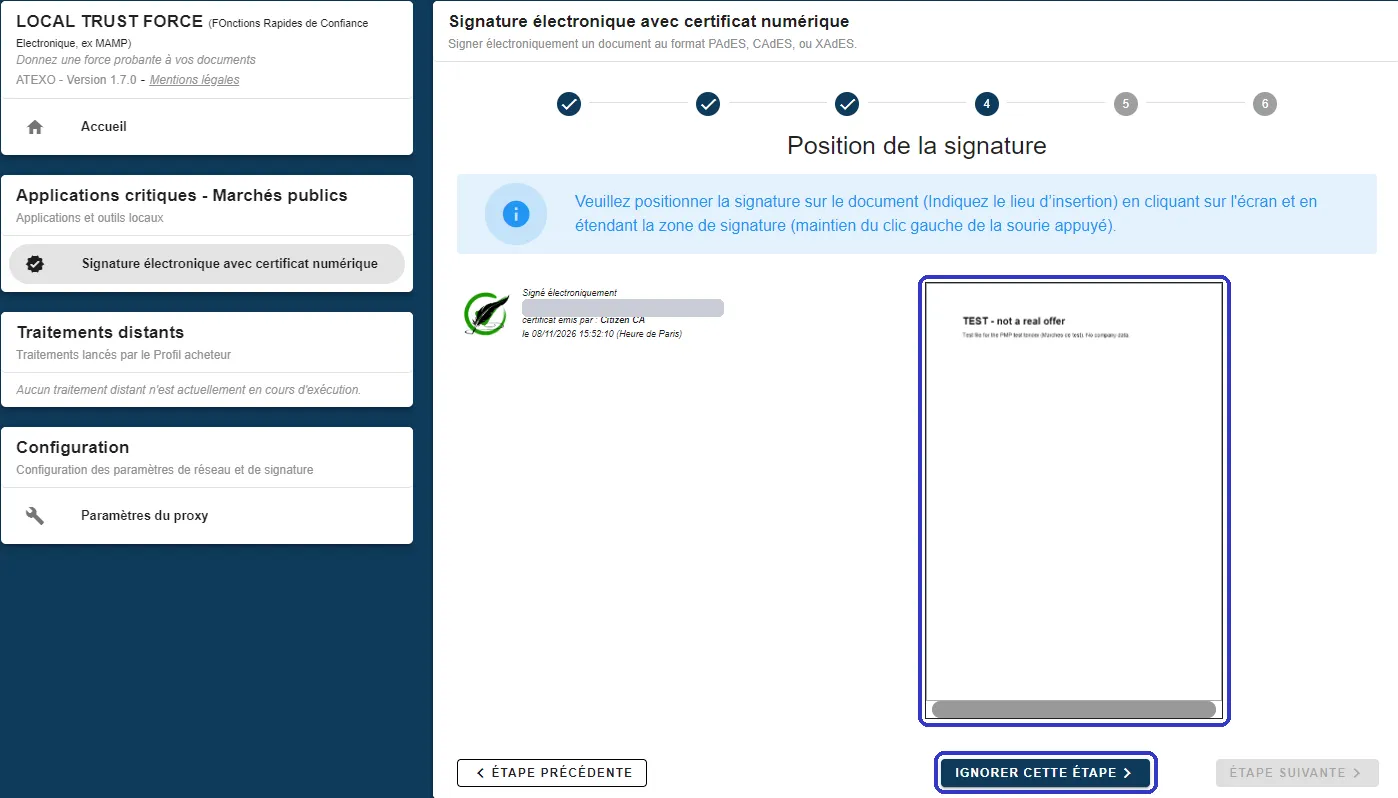
5. For a PDF you can place a visible signature on the page, or skip this step (“Ignorer cette étape”). The signature is inside the PDF either way.
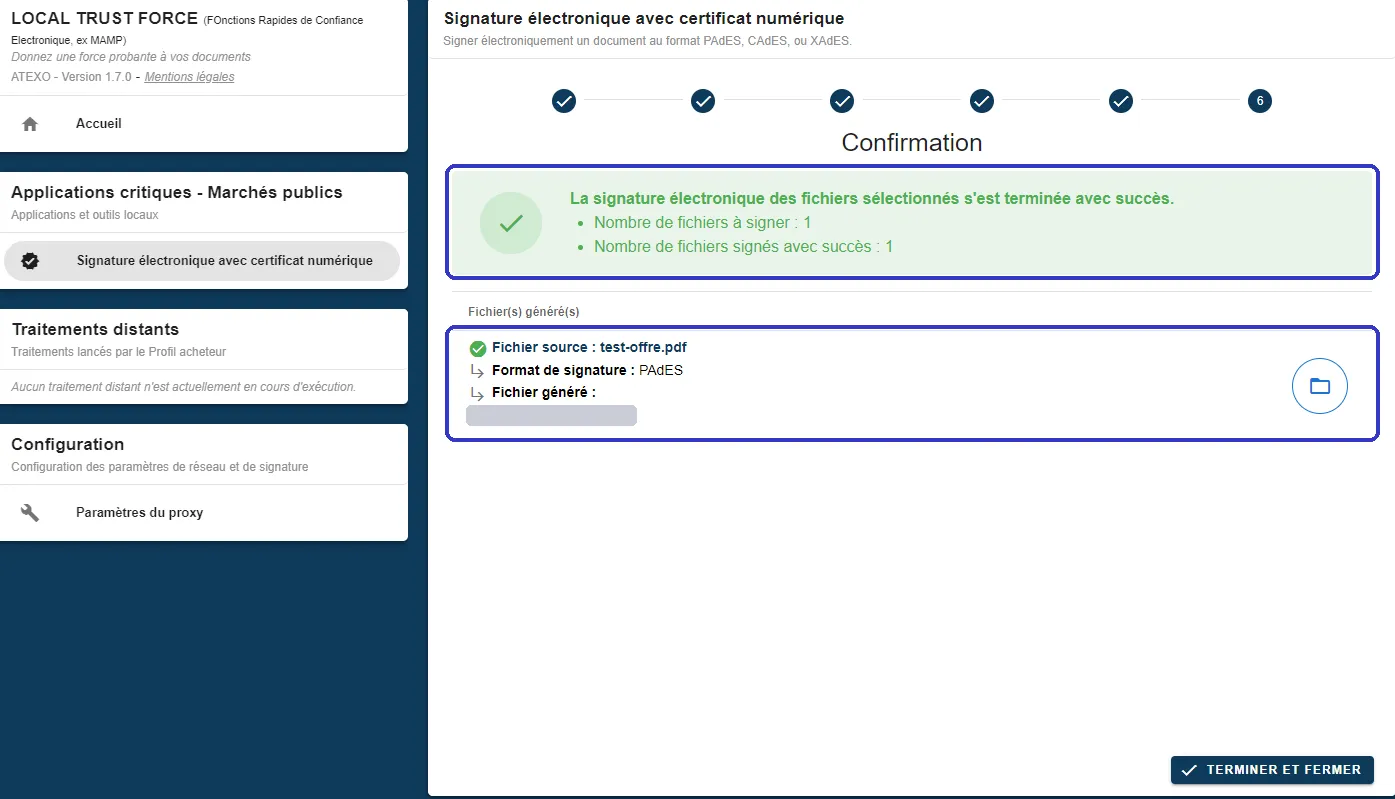
6. Done: 1 file signed in PAdES format, saved in the folder shown.
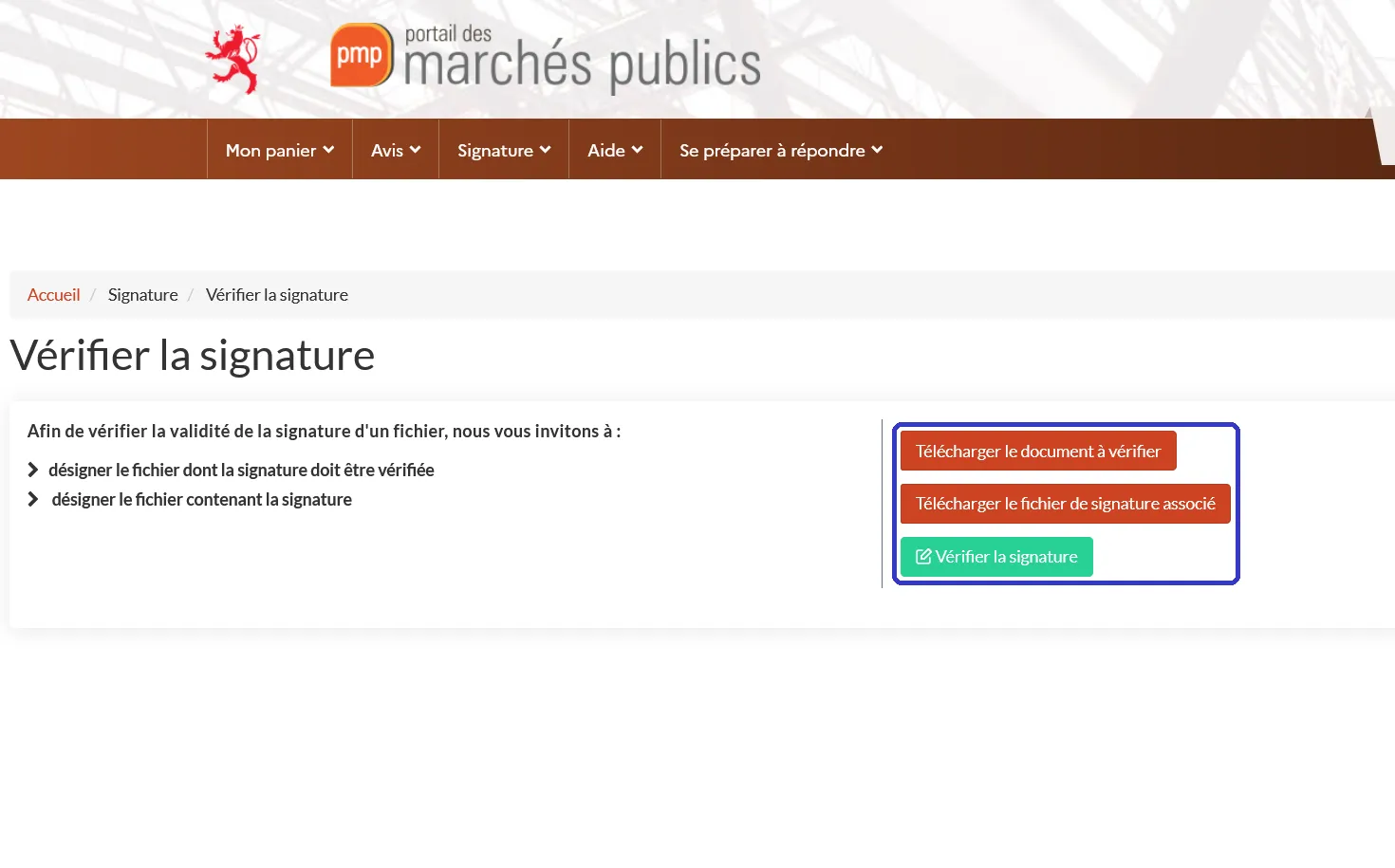
7. To check a signed file: Signature > “Vérifier la signature”. Add the document, then its signature file (for a PDF, the PDF again).
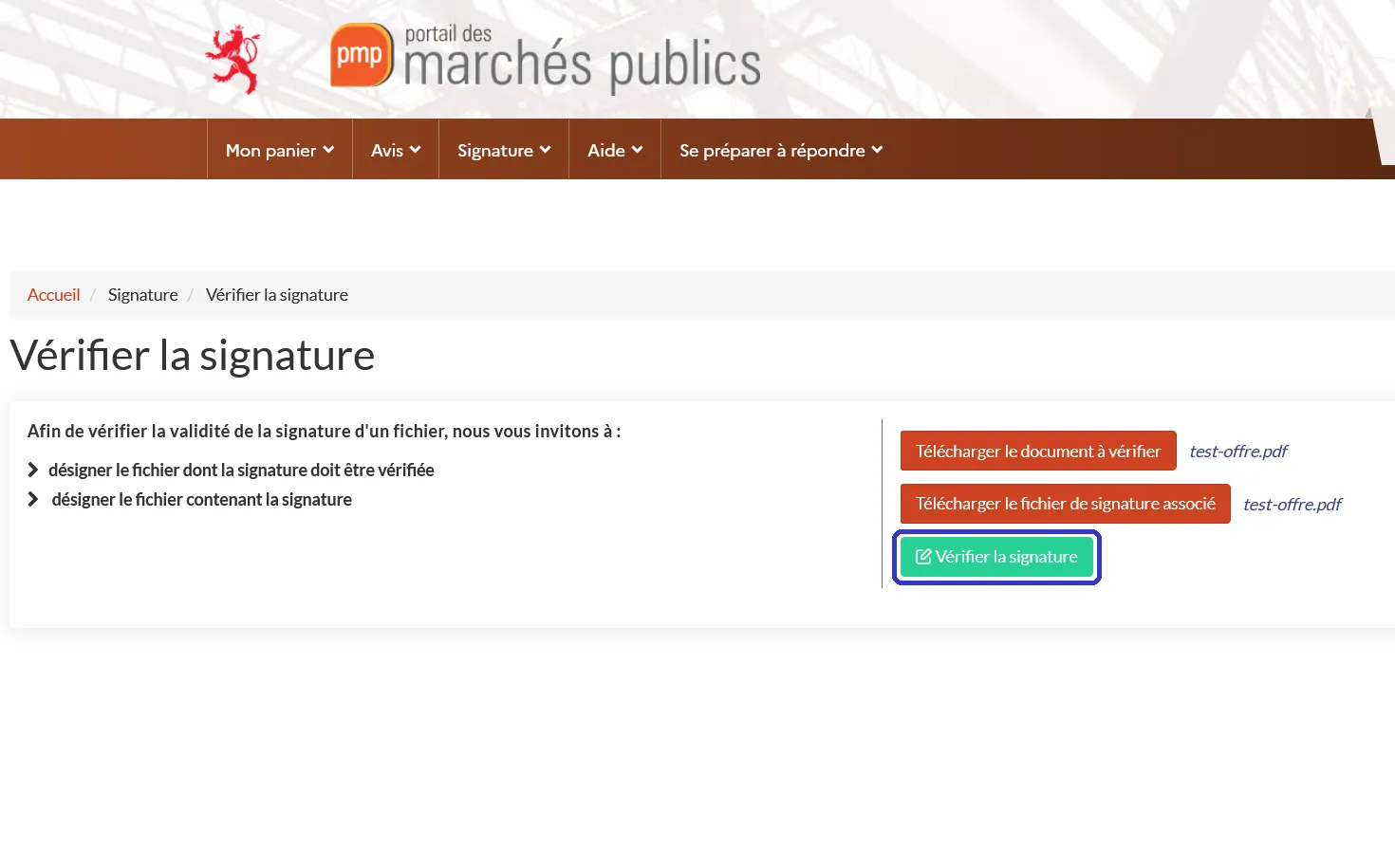
8. Click “Vérifier la signature”.
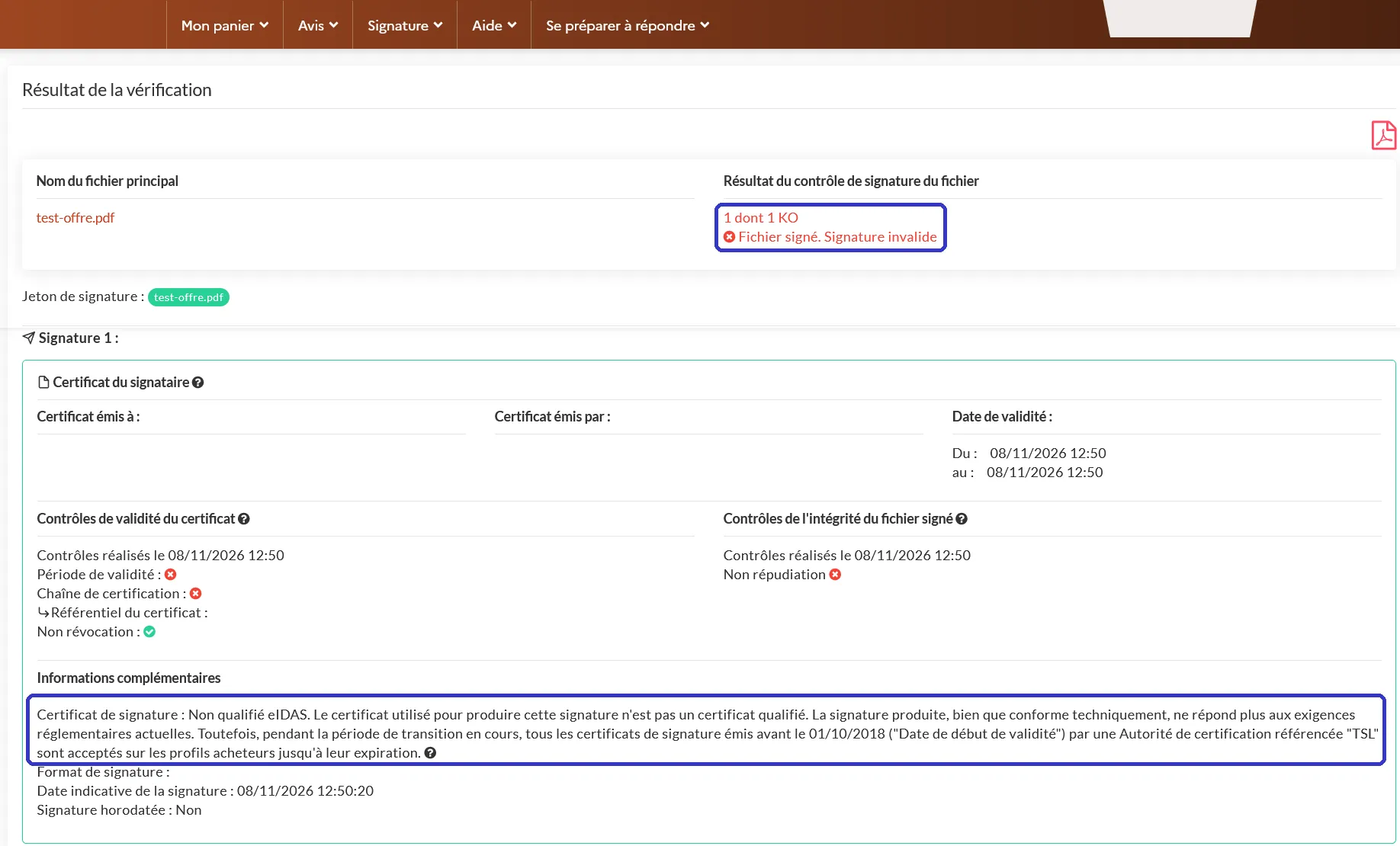
9. The result for a test file signed with an ordinary certificate: invalid, because the certificate is not qualified (“Non qualifié eIDAS”).
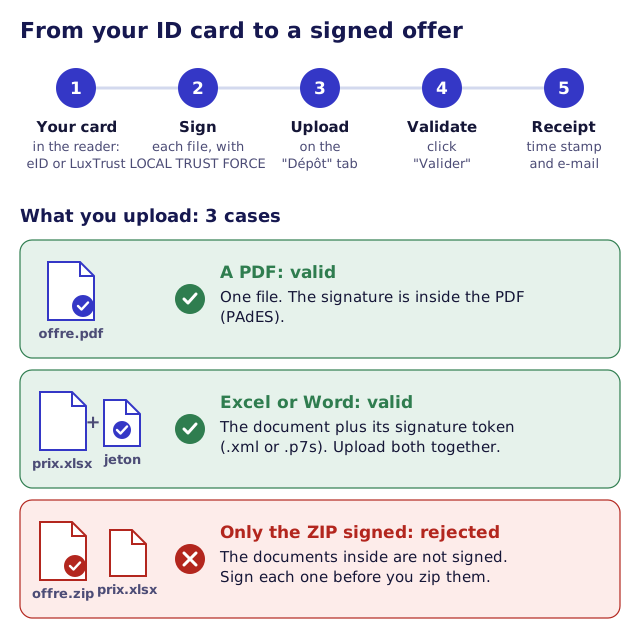
A PDF carries its signature inside the file (the PAdES format). Other files, such as Excel or Word, get a separate signature file, which PMP calls a “jeton de signature” (signature token): an .xml file in the XAdES format or a .p7s file in the CAdES format. Upload the document and its token together.
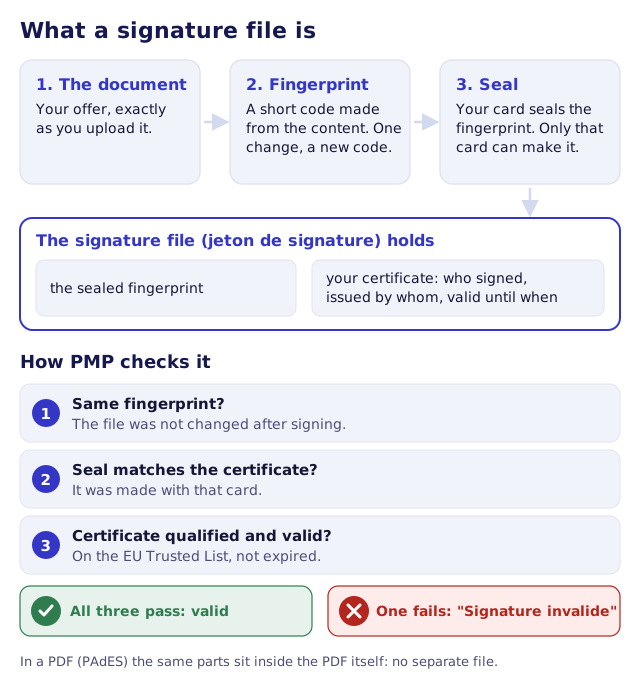
Two rules matter most:
- Sign each document one by one. A signed ZIP file is not a set of signed documents.
- Never open or save a document again after signing it. The signature covers that exact file; any change breaks it.
Submitting in four steps
- Prepare. Save all files on your computer, check the formats and file names the tender documents ask for, and use simple names without special characters. Under “Se préparer à répondre” you can test your computer (“Tester la configuration de mon poste”: it checks that LOCAL TRUST FORCE is running, your certificates, your browser and the connection) and practise on a test tender (“Marchés de test”).
- Sign each file.
- Log in with “Se connecter”.
- Submit. Open the contract and go to the “Dépôt” tab. PMP first shows your company details and your contact details: check them. If the contract has lots, select them first with “Sélectionner les lots”: you can’t change them afterwards. If it has a DUME, choose how you apply (see the ESPD section). Then click “Répondre à la consultation” and add your files (up to 1 GB each). Next to each Word or Excel file, click “Ajouter le jeton de signature” to add its signature token. Accept the terms of use and click “Valider”.
If a file is not signed, PMP warns you before sending: “Le ou les fichiers suivants ne sont pas signés” (the following files are not signed). PMP still lets you continue, but the buyer can reject an offer with unsigned files. Click “Annuler” and sign them first.
When the submission goes through, PMP shows “Votre réponse a bien été enregistrée” (your answer has been saved) with the time stamp of the submission. You also receive an acknowledgement of receipt by e-mail, with the date and time. It lists the signatures of each correctly signed file and stays available in PMP.
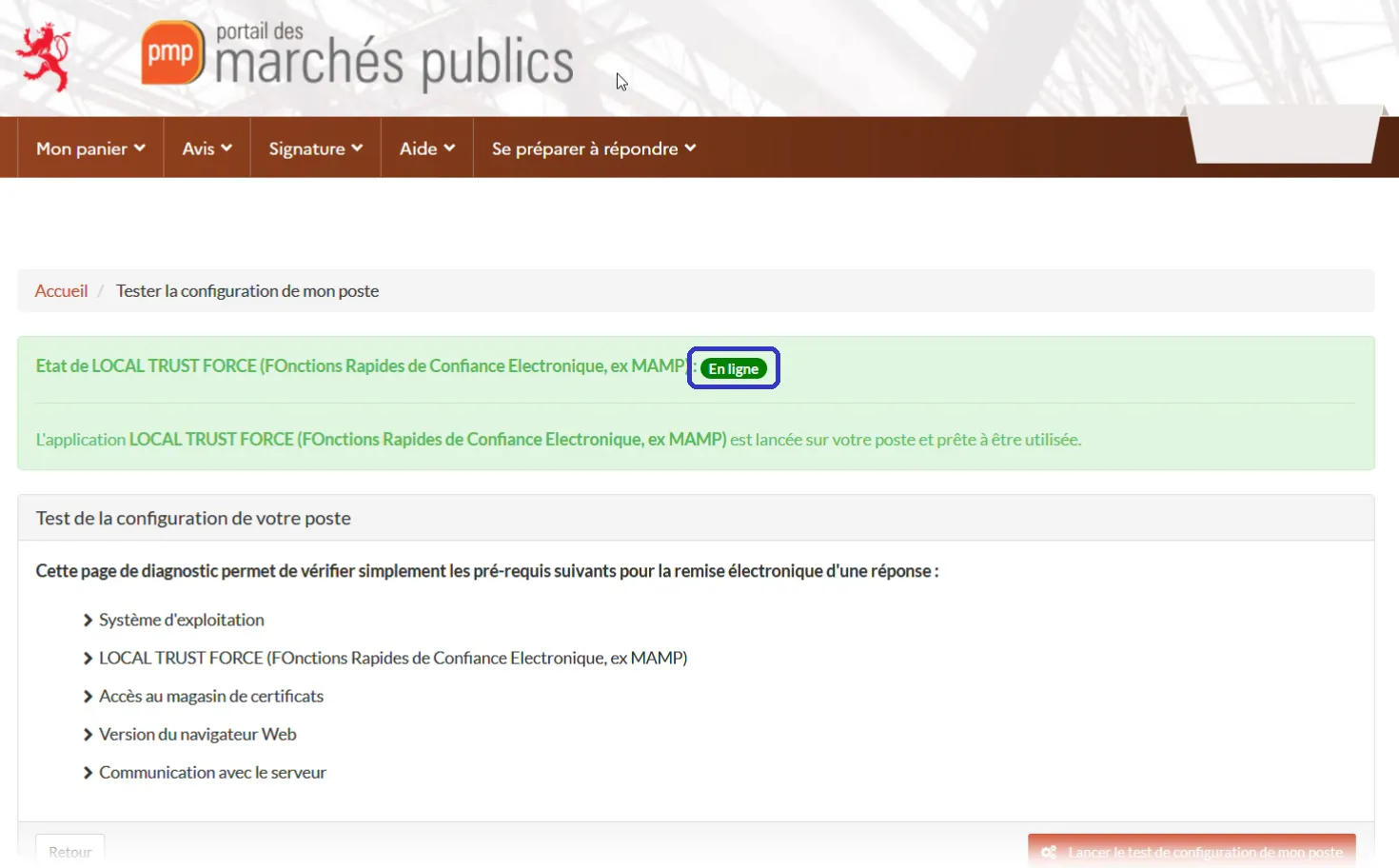
1. “Tester la configuration de mon poste”: LOCAL TRUST FORCE must show “En ligne” (running).
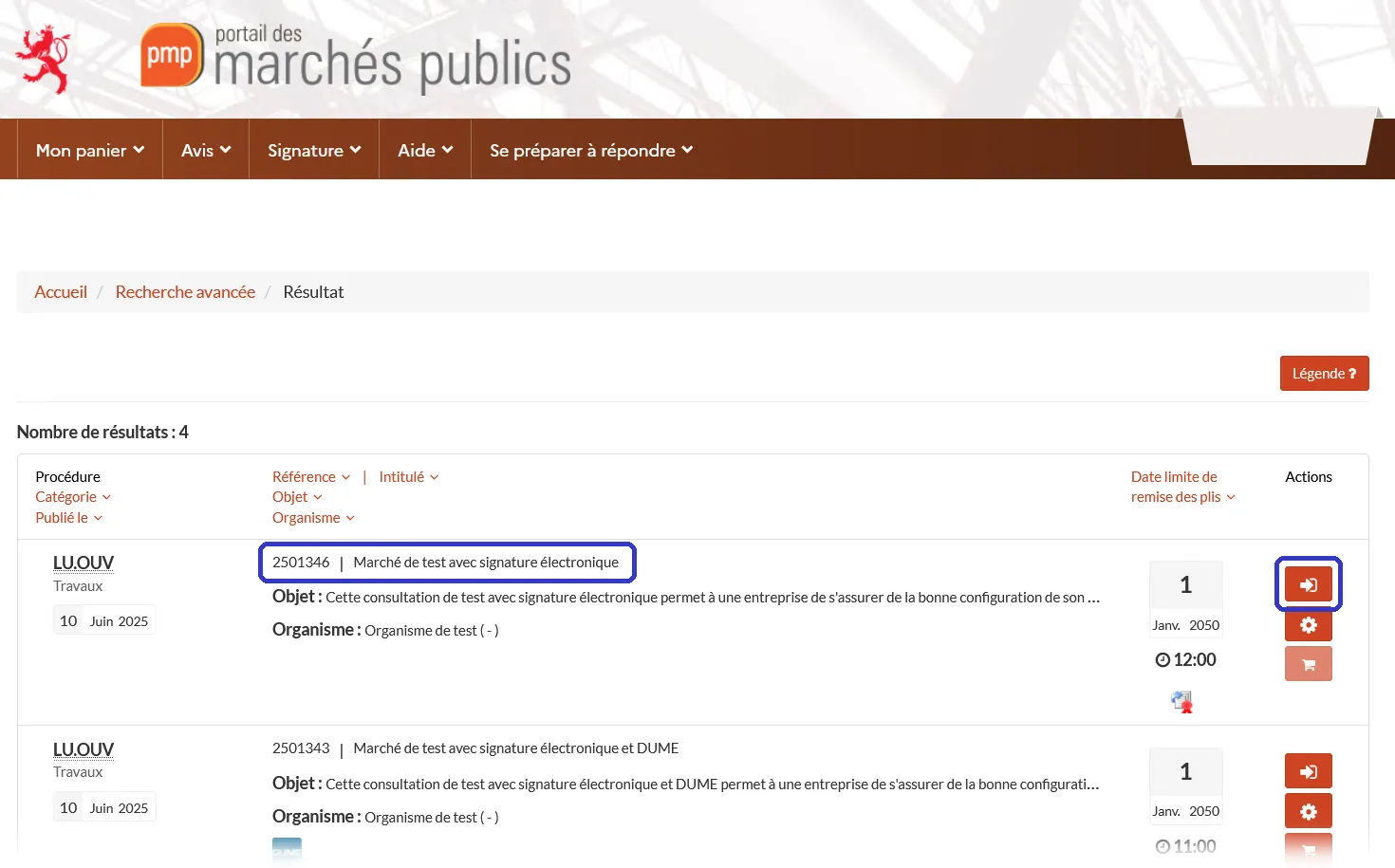
2. “Marchés de test”: PMP’s test tenders, open until 2050. Open one with the arrow button.
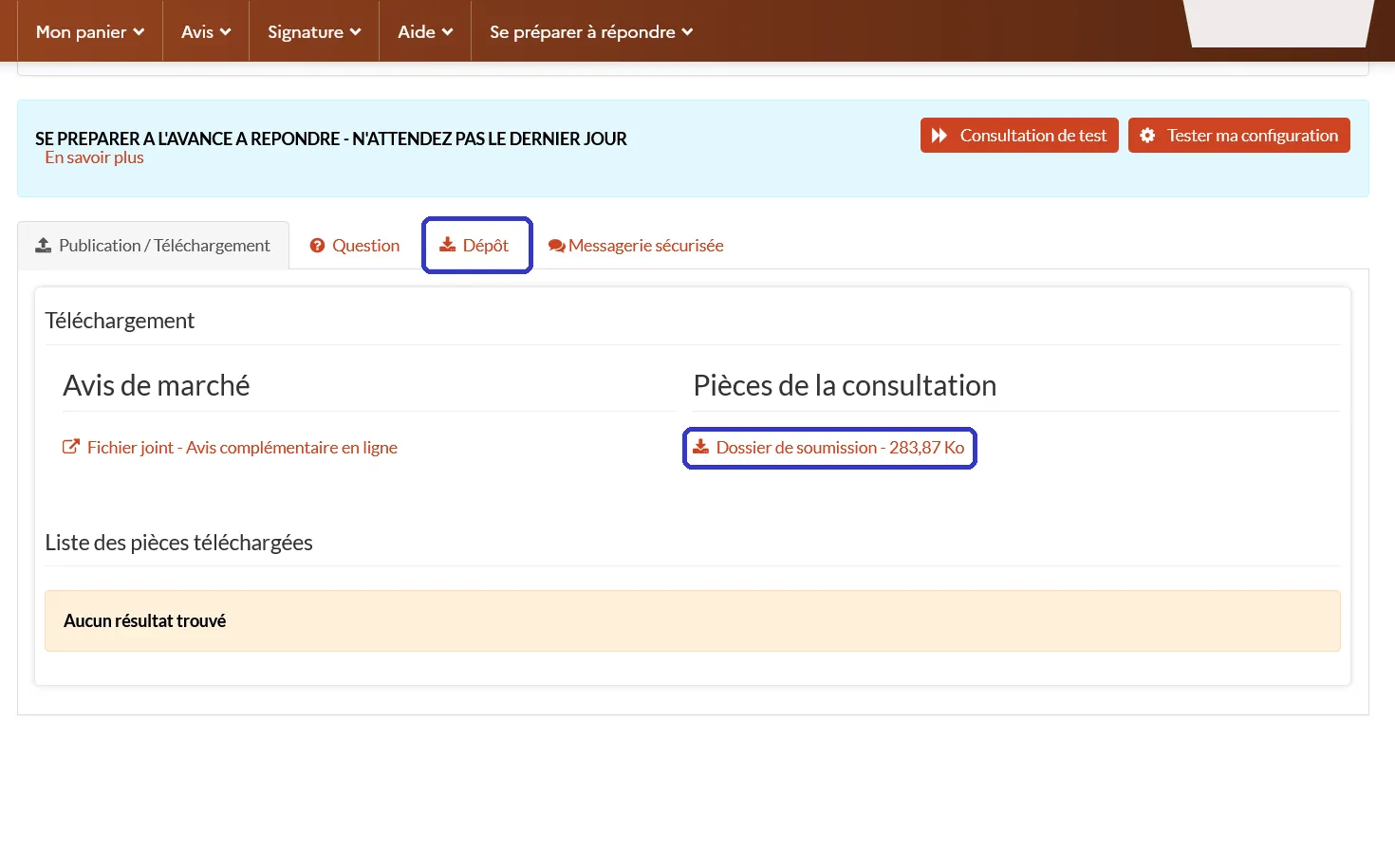
3. The contract page: the tender documents are under “Publication / Téléchargement”, submitting is on the “Dépôt” tab.
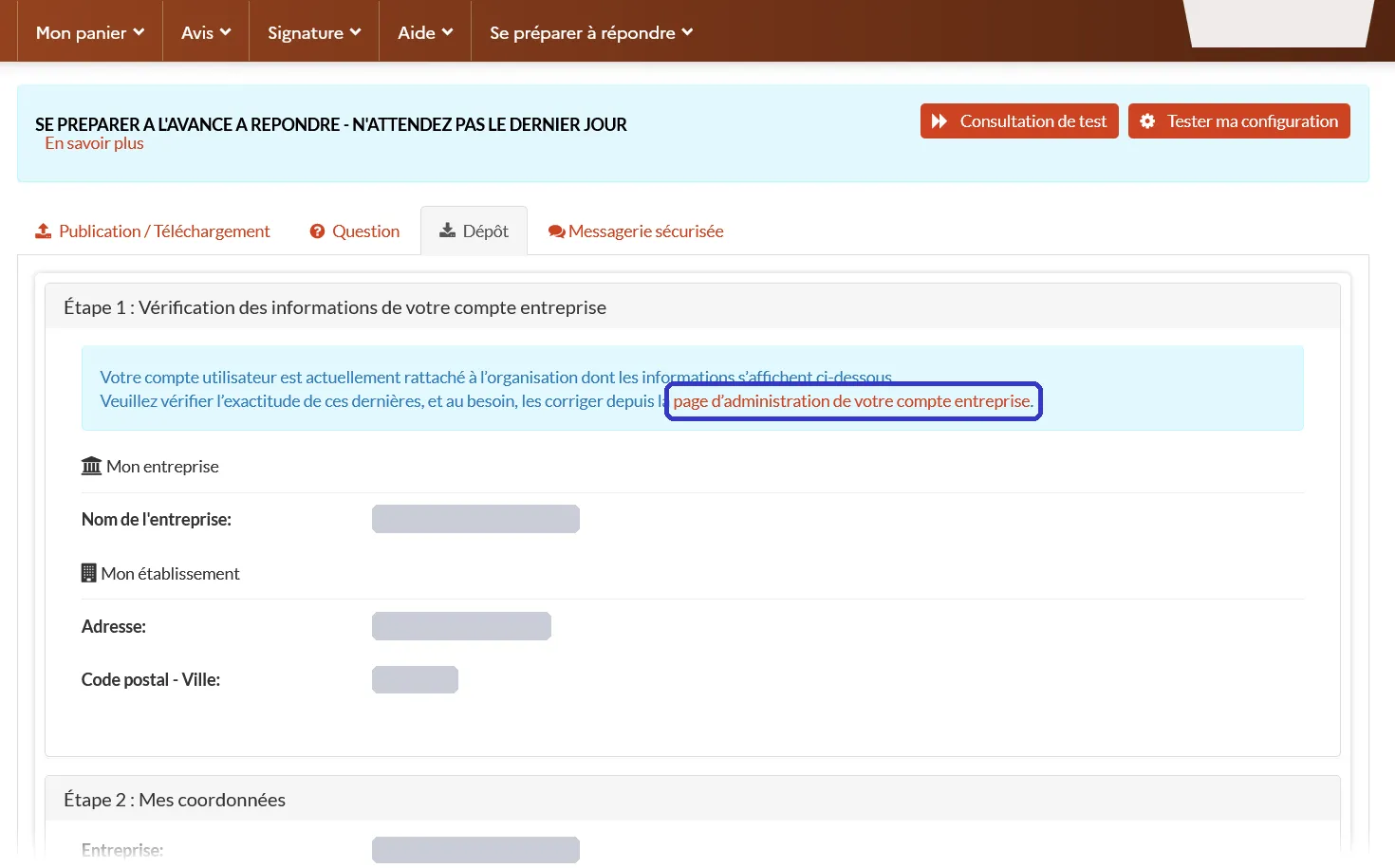
4. Step 1: check your company details (hidden here). To correct them, follow the link to your company account page.
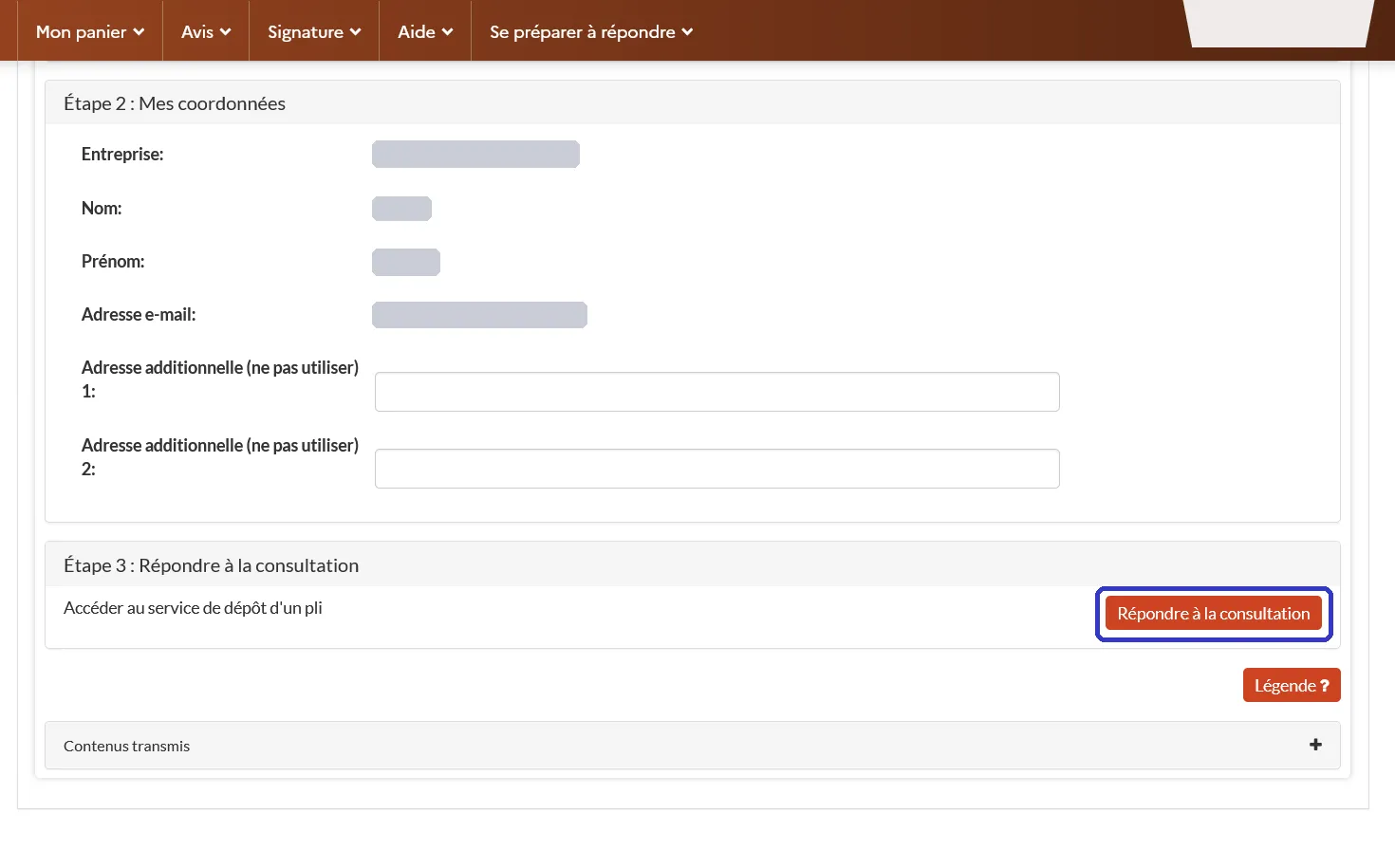
5. Step 2: check your contact details, then click “Répondre à la consultation”.
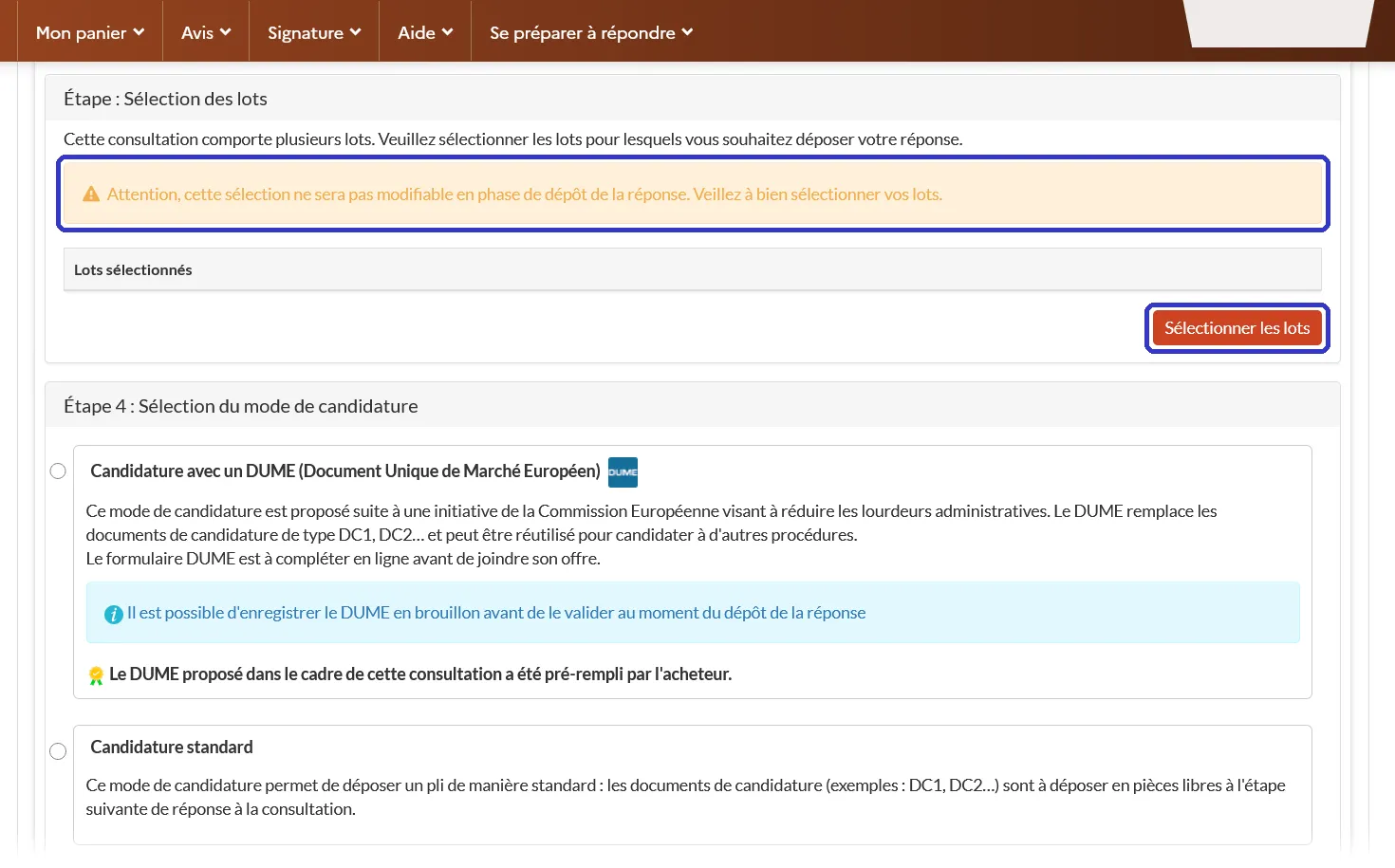
6. A contract with lots (test tender 2501344): choose them with “Sélectionner les lots” before you answer. You can’t change them later.
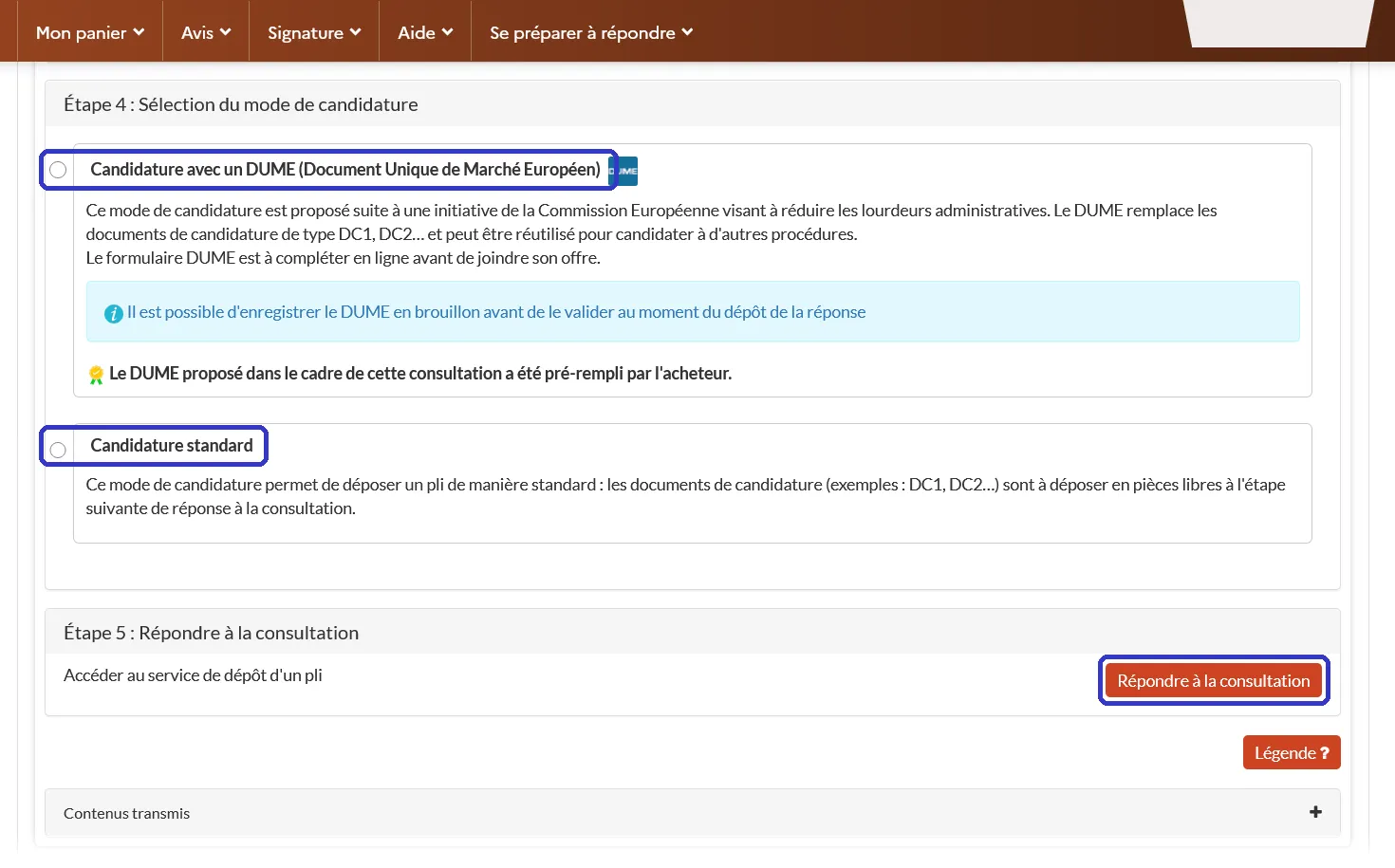
7. A contract with a DUME: “Candidature avec un DUME” (online form, pre-filled by the buyer, can be saved as a draft) or “Candidature standard” (documents as files). Then “Répondre à la consultation”.
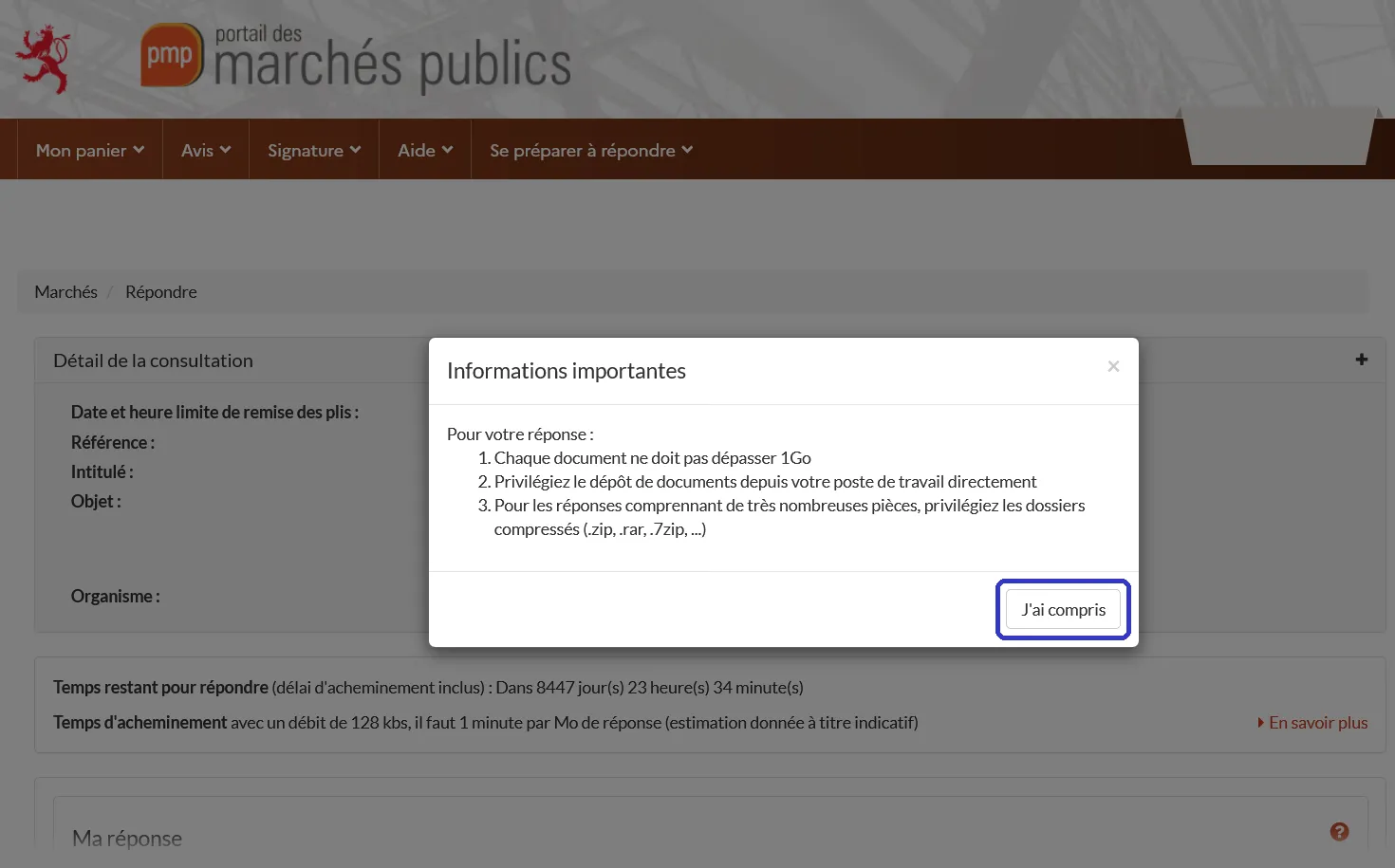
8. PMP’s reminders: 1 GB per document at most, upload from your own computer, ZIP files for many documents. Click “J’ai compris”.
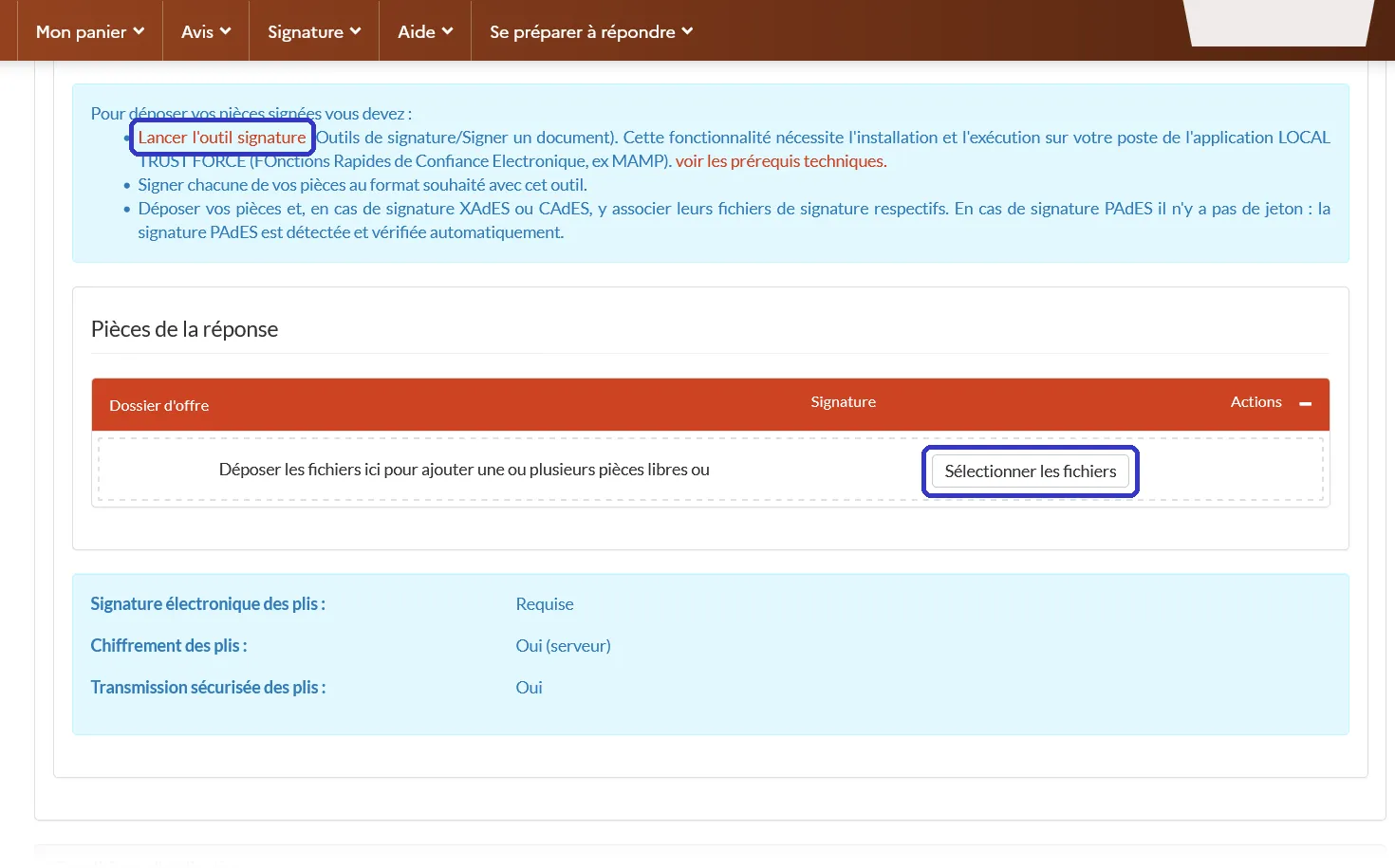
9. Add your signed files: drag them in, or click “Sélectionner les fichiers”. Not signed yet? “Lancer l’outil signature” opens the signing tool.
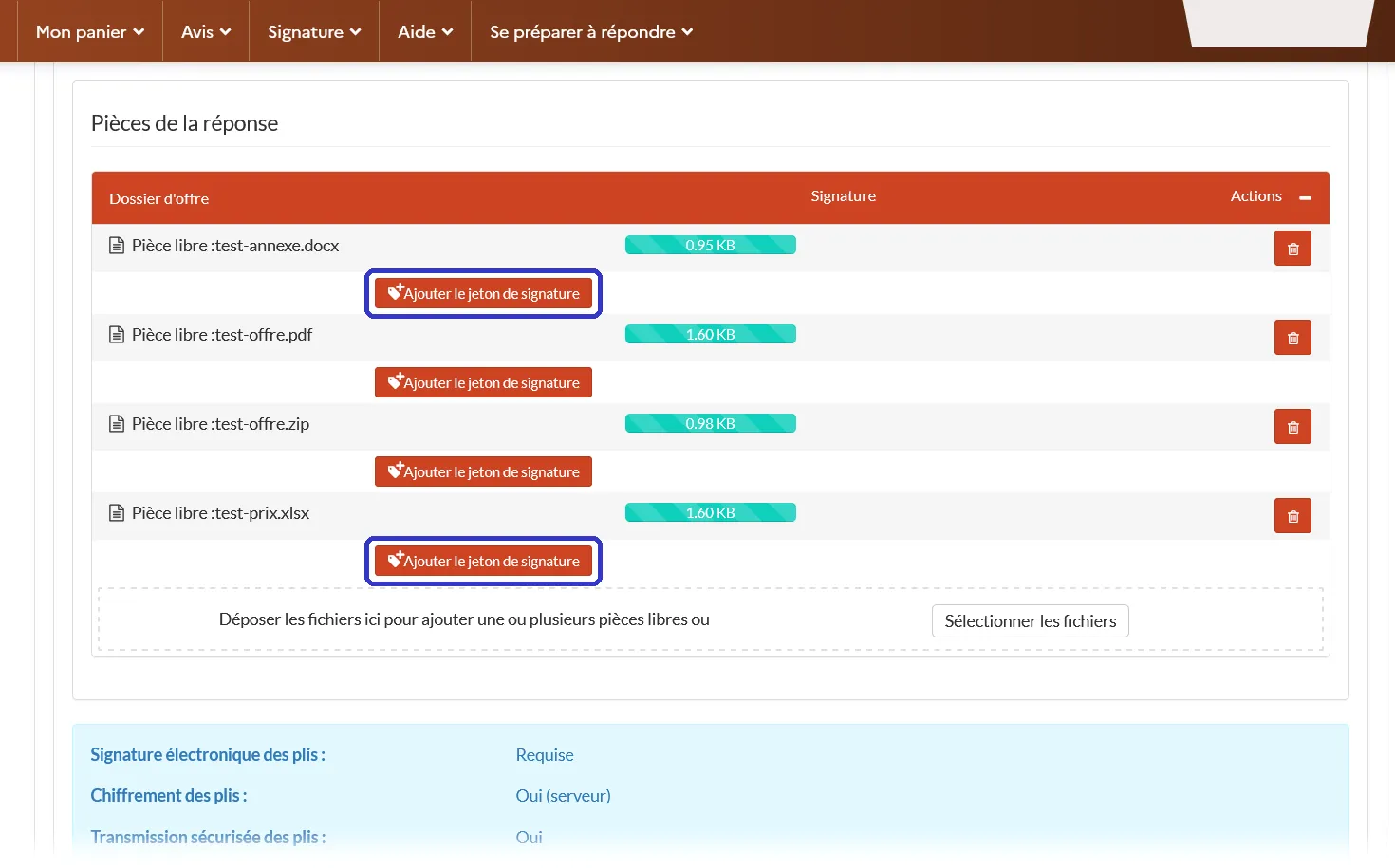
10. Next to each Word or Excel file, “Ajouter le jeton de signature” adds its signature token.
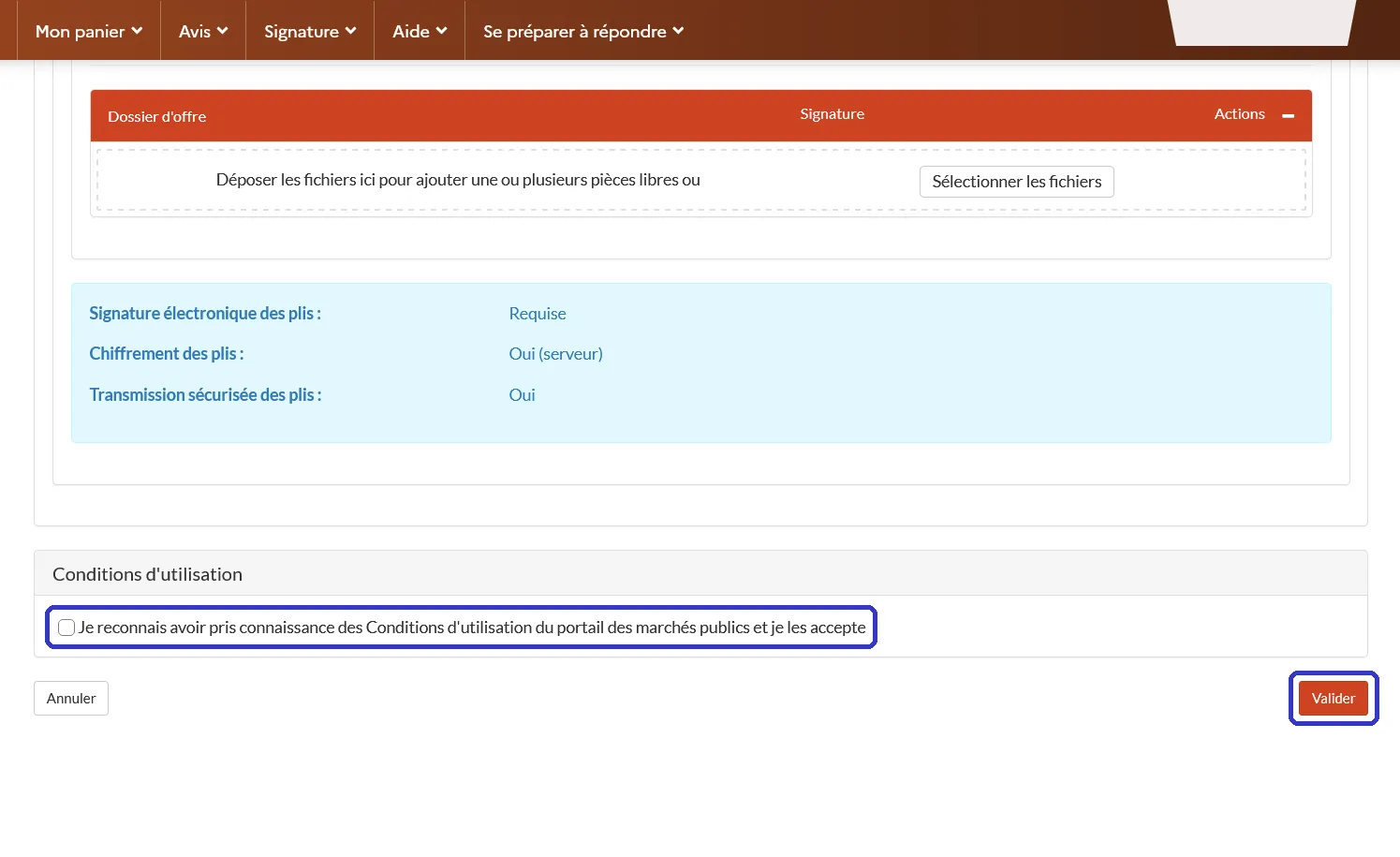
11. Accept the terms of use and click “Valider”.
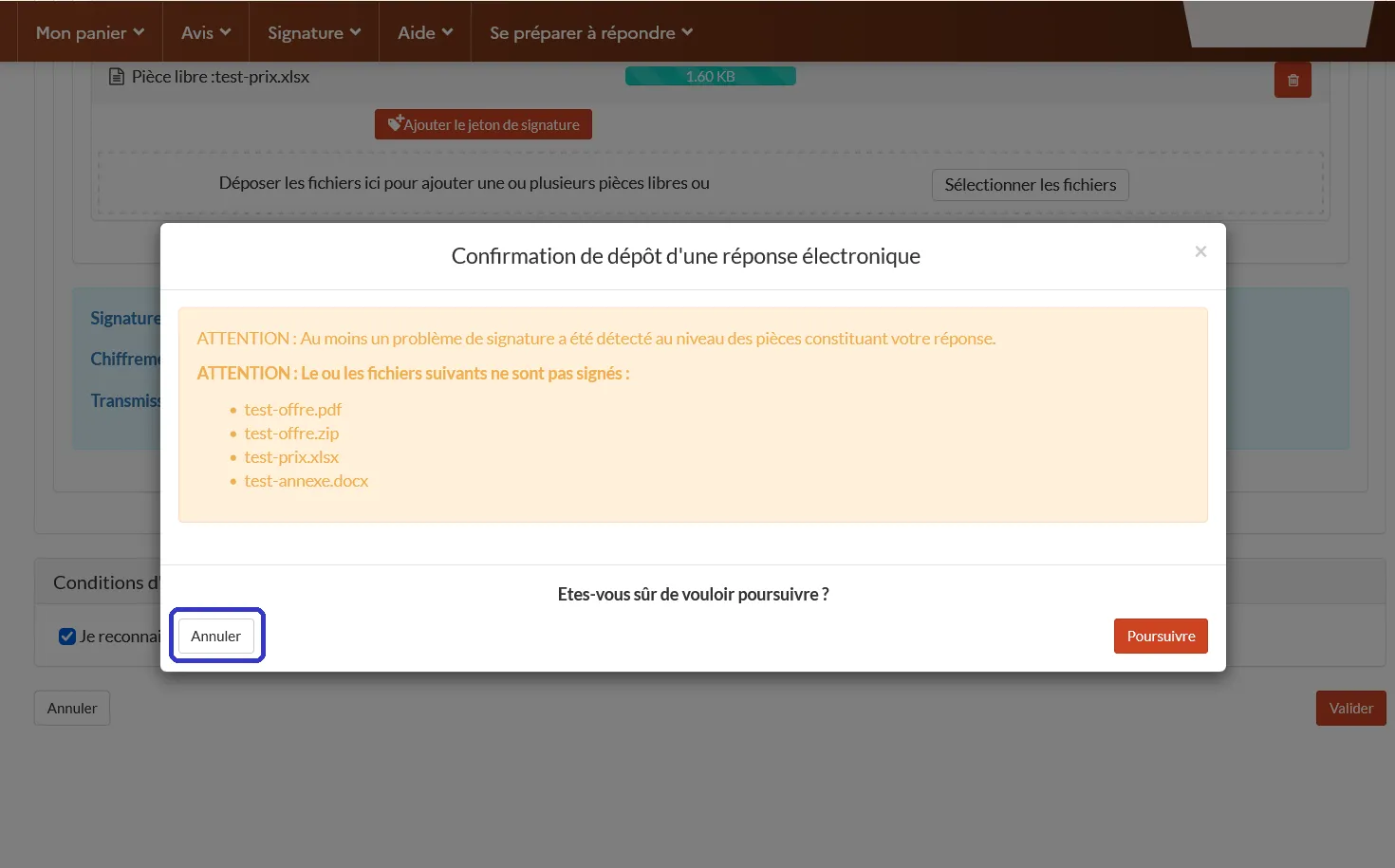
12. Unsigned files get this warning. Click “Annuler” (cancel) and sign them, not “Poursuivre” (continue).
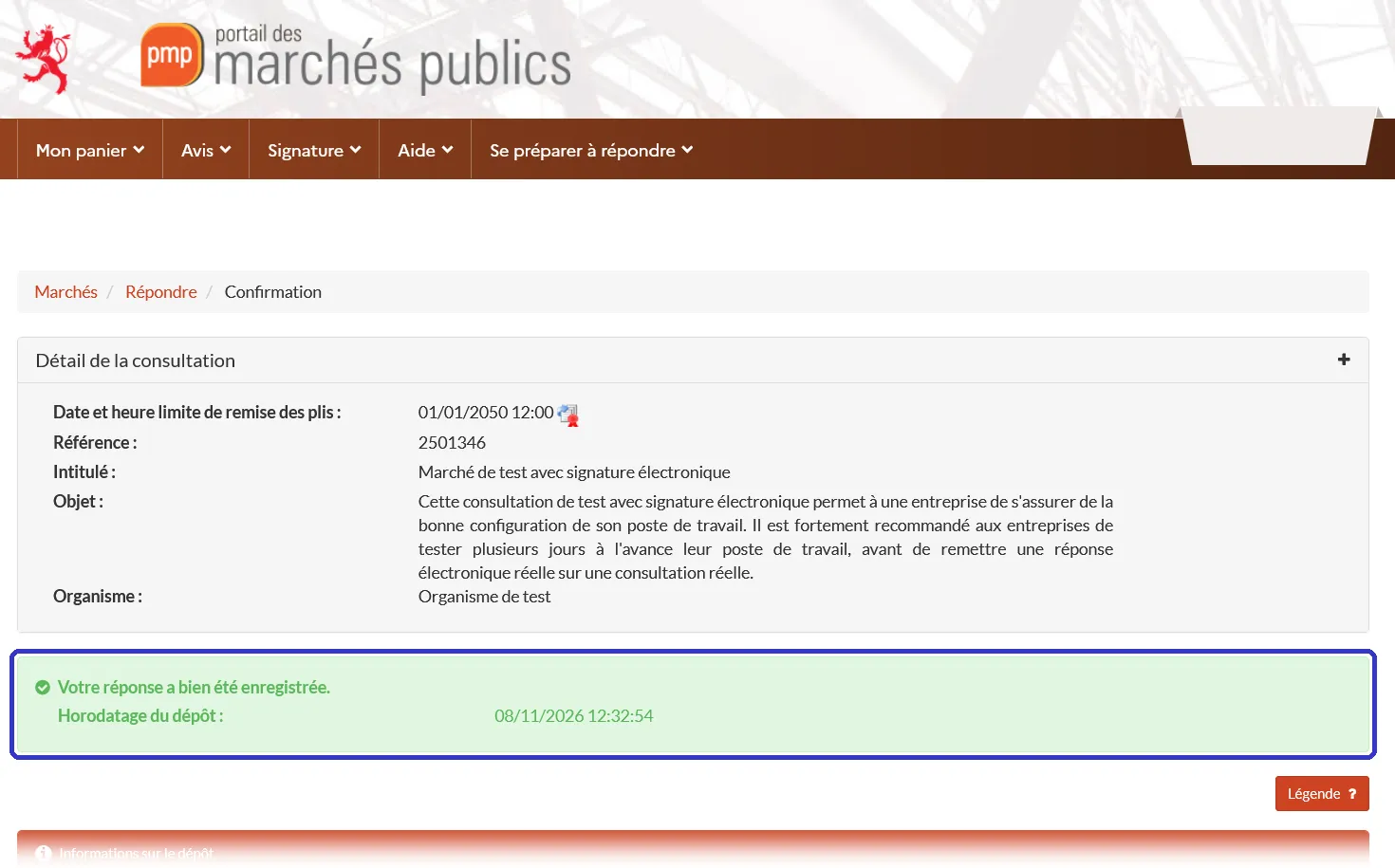
13. Done: “Votre réponse a bien été enregistrée” (your answer has been saved), with the time stamp.
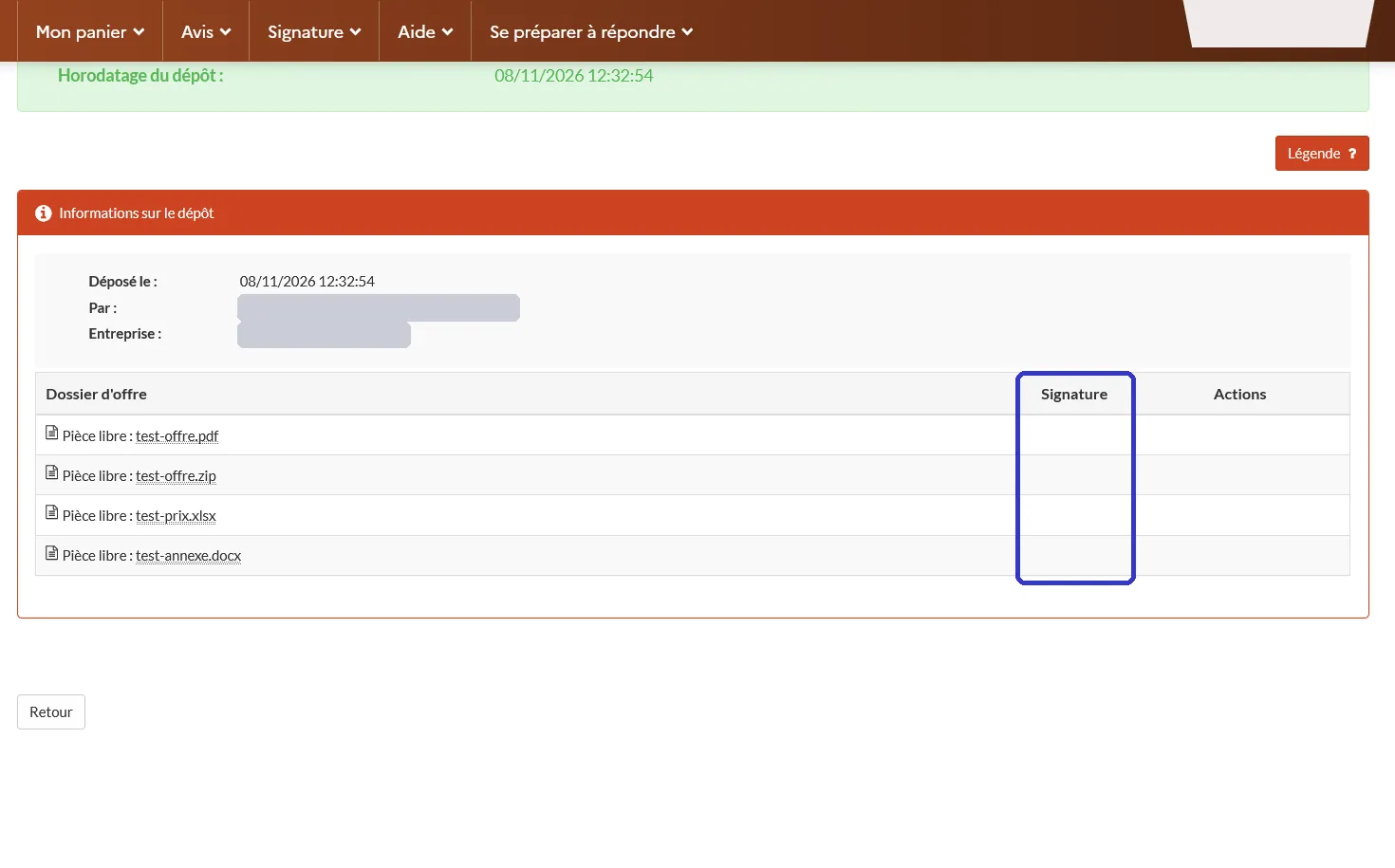
14. The submission details list your files. The “Signature” column stays empty for unsigned files.
The mistakes that get an offer rejected
- Only the ZIP is signed. PMP suggests ZIP files when you have many documents, but sign every document one by one before you zip it: a signature on the ZIP does not sign the documents inside.
- A Word or Excel file without its signature token. Upload both, or the document counts as unsigned.
- Special characters in file names. Keep to letters, numbers and hyphens.
- Adding one file to change the offer. Only the last submission before the deadline counts, so always submit a complete new offer.
- Certificates that are too old. Tender documents often require certificates and attestations less than three months old on the submission date. Check the dates the tender asks for.
- A missed questions deadline or compulsory step, such as an interview or a site visit. Note these dates on the first day.
- Submitting at the last minute. Test a few days before, submit the day before the deadline, and keep the acknowledgement of receipt.
- A damaged or infected file. Open and check every file before you sign it.
Questions to the buyer and secure messaging
Questions go through the “Question” tab of the contract: click “Poser une question”. The first time, PMP asks for your contact details and your company’s details (its VAT number, or for a company outside Luxembourg its national registration number), so the buyer can send you any changes to the tender. Then write your question, 250 characters at most, and attach a file if you need to. Ask before the questions deadline in the tender documents.
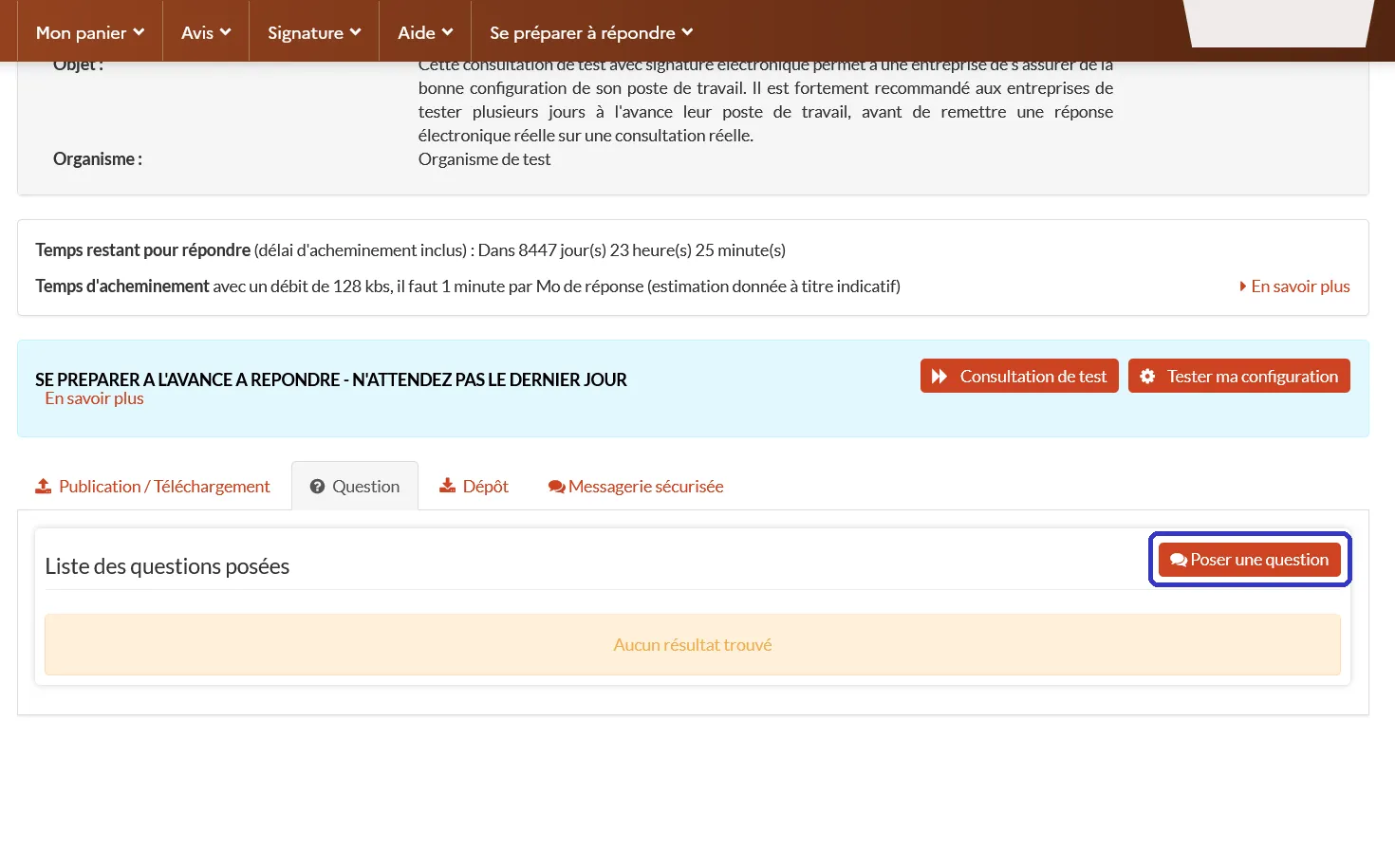
1. The “Question” tab of the contract: click “Poser une question”.
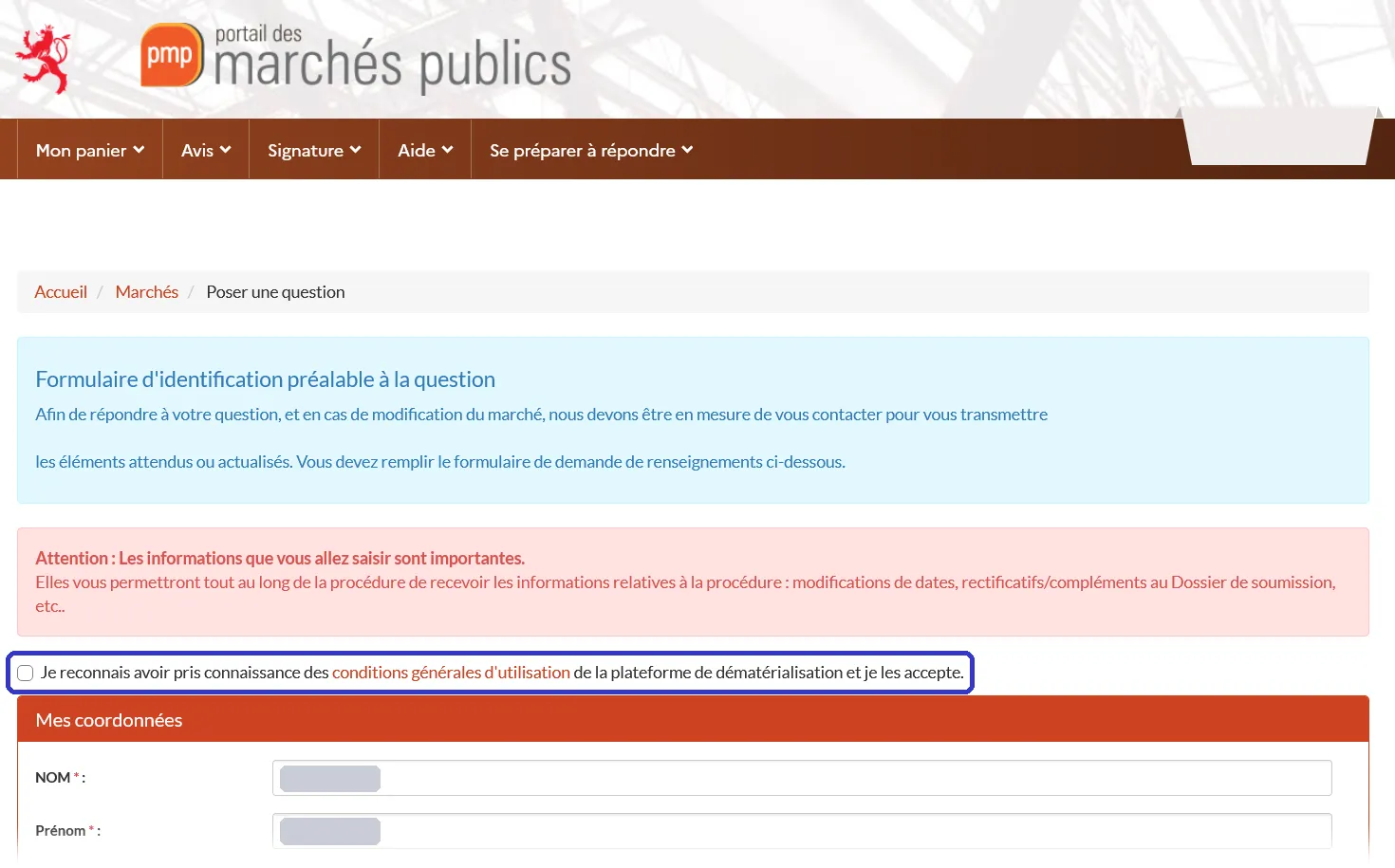
2. The first time, PMP asks who you are. Accept the terms of use and fill in your contact details (hidden here).
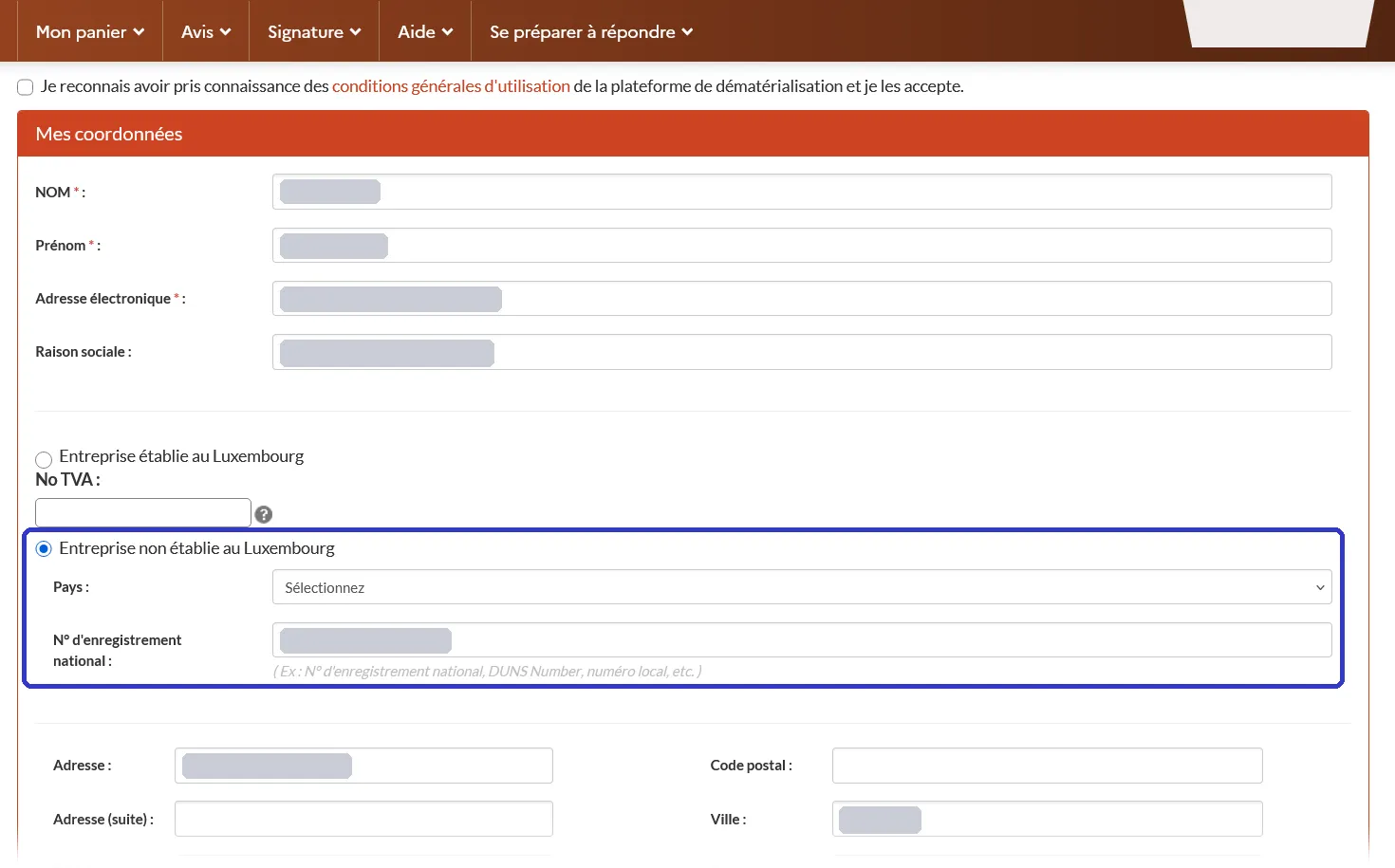
3. A company outside Luxembourg ticks “Entreprise non établie au Luxembourg” and gives its national registration number (in Belgium, the enterprise number).
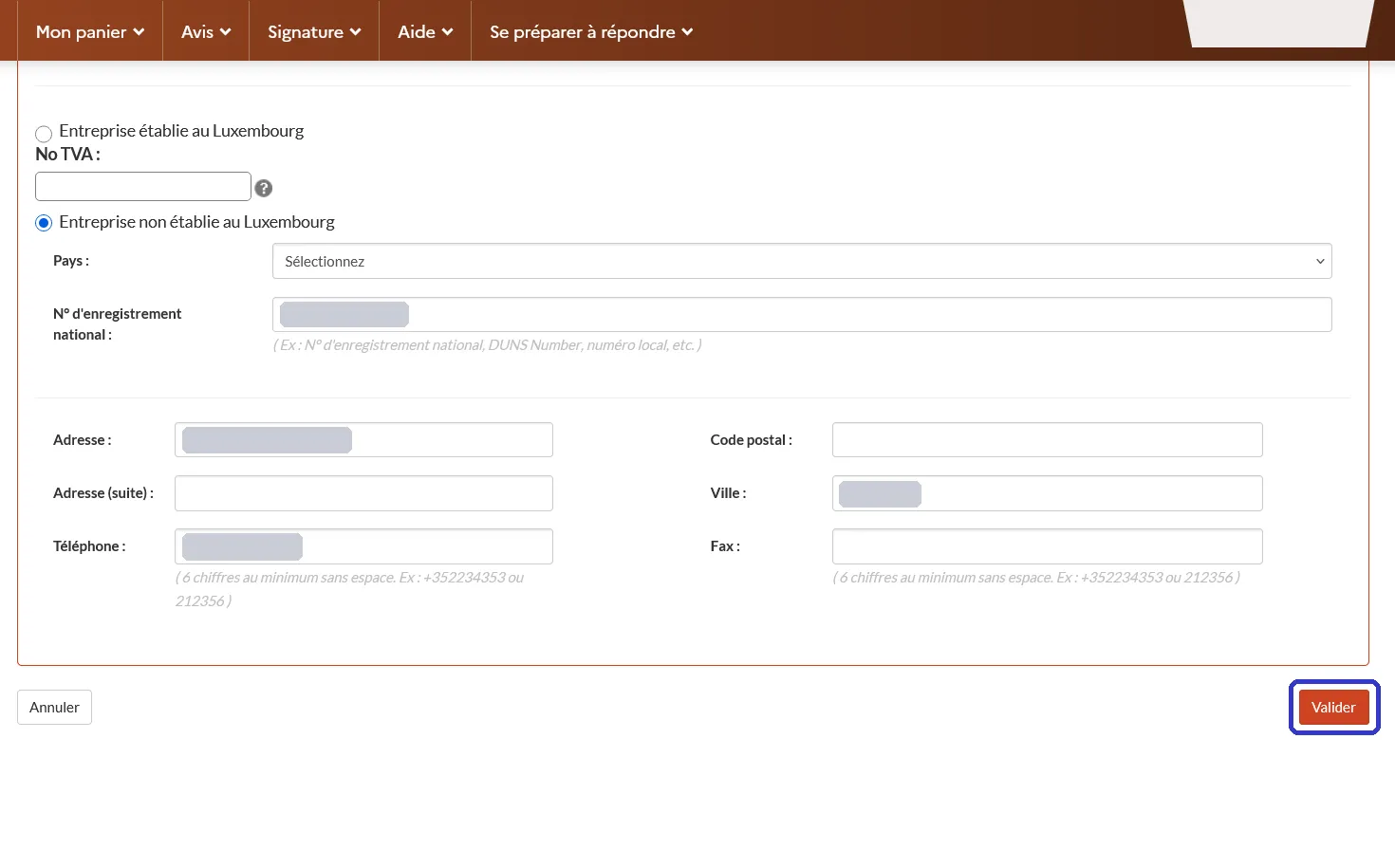
4. Add your address and phone number, then click “Valider”.
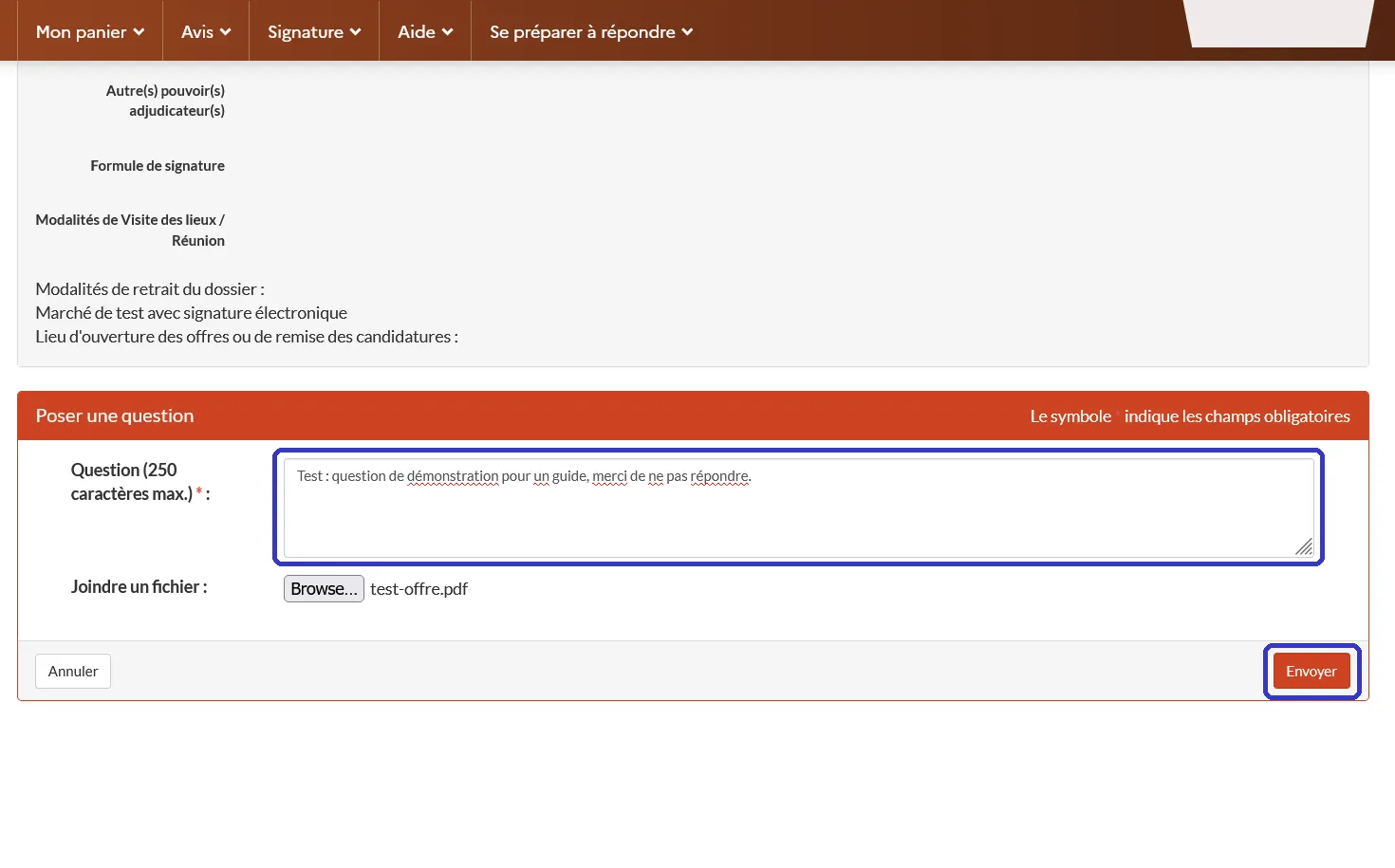
5. Write your question (250 characters at most), add a file if needed and click “Envoyer” (send).
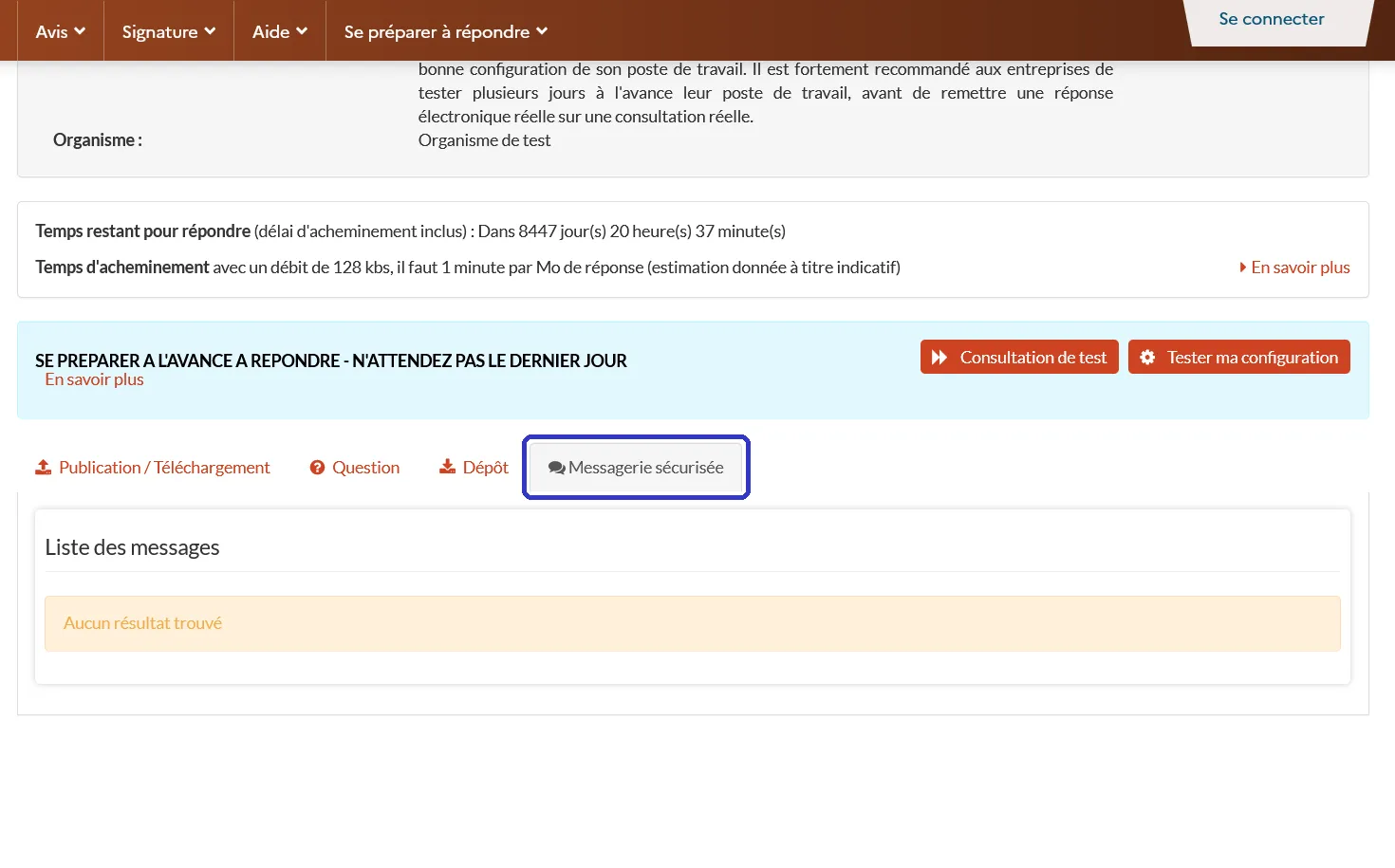
6. Other exchanges with the buyer are on the “Messagerie sécurisée” tab (empty here: no messages on the test tender).
Other exchanges with the buyer go through the “Messagerie sécurisée” tab: information messages, with or without an acknowledgement, and messages that expect an answer. Arrange compulsory steps such as site visits the way the tender documents describe.
The ESPD (DUME)
The European Single Procurement Document (ESPD, called DUME in French) is a sworn statement in which your company declares that it is not excluded and meets the selection criteria. At first it replaces the certificates themselves.
In Luxembourg you fill it in with the Belgian DUME service, in five steps (Commencer, Procédure, Exclusion, Sélection, Terminer). At the end, “Télécharger” gives it as XML, PDF or both. You can reuse an ESPD from an earlier procedure if the information is still correct. The buyer can ask for the supporting documents at any time, and the winner must provide them before the contract is awarded.
A tender on PMP can also come with its own DUME. On the “Dépôt” tab you then choose “Candidature avec un DUME” (filled in online, pre-filled by the buyer, can be saved as a draft) or “Candidature standard” (your application documents uploaded as files).
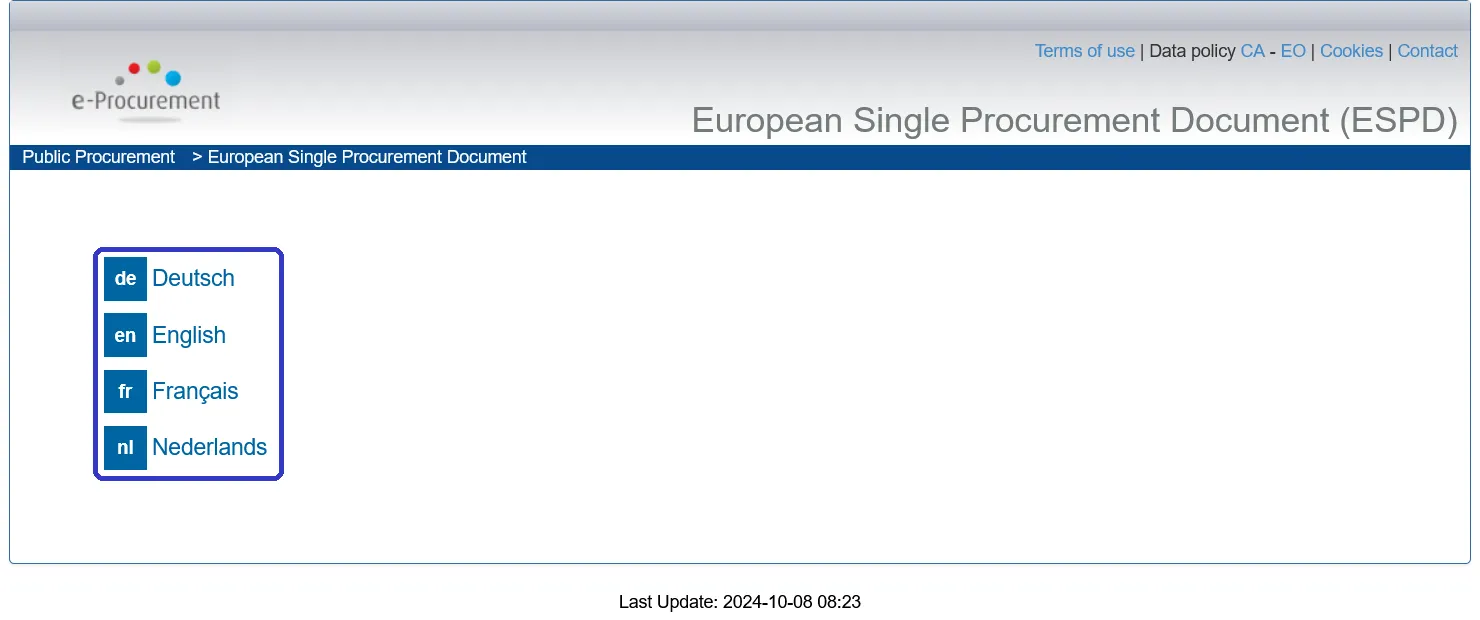
1. Choose your language.
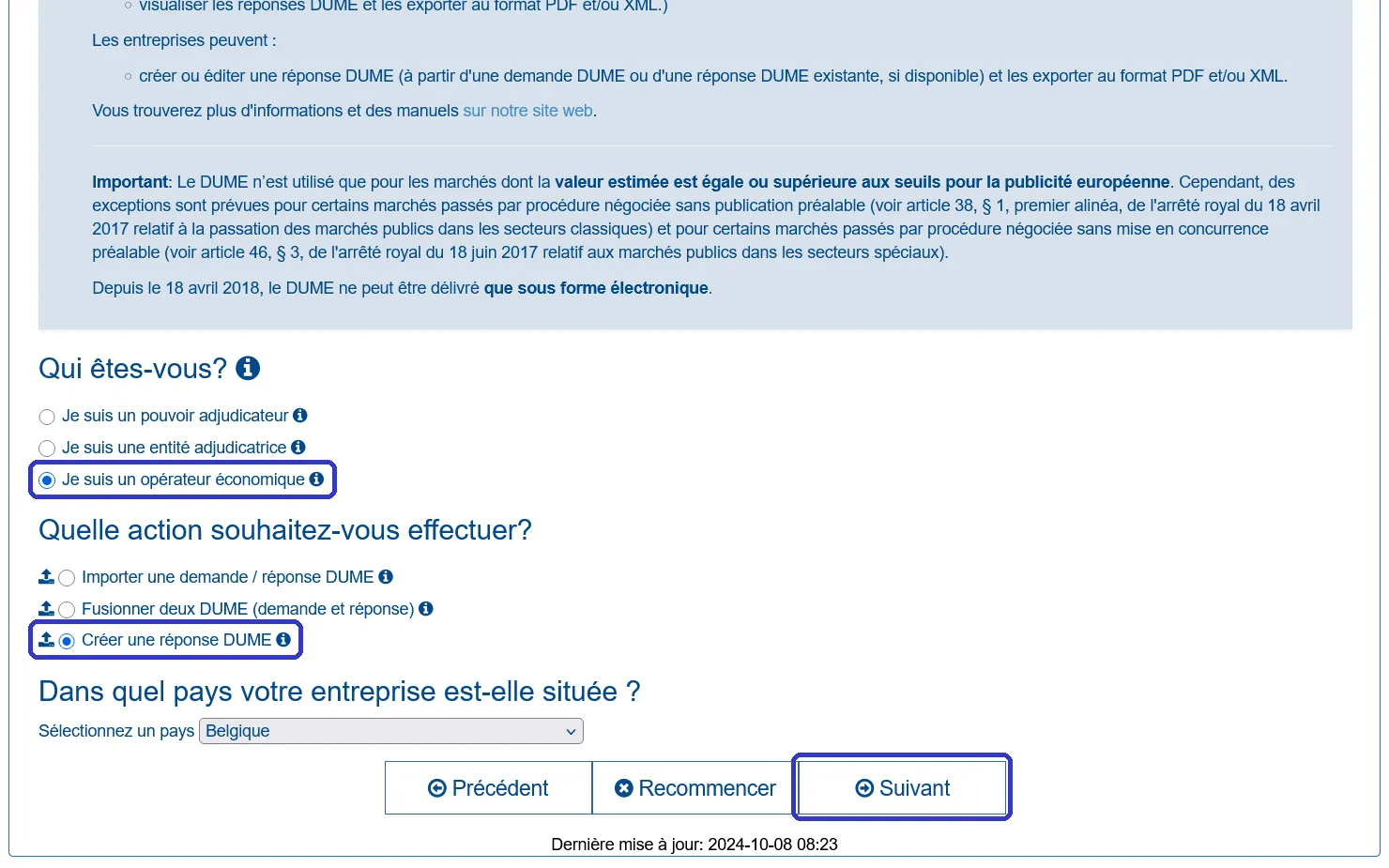
2. Choose “Je suis un opérateur économique” (a company), then “Créer une réponse DUME”, or import one from an earlier procedure. Pick your country, then “Suivant”.
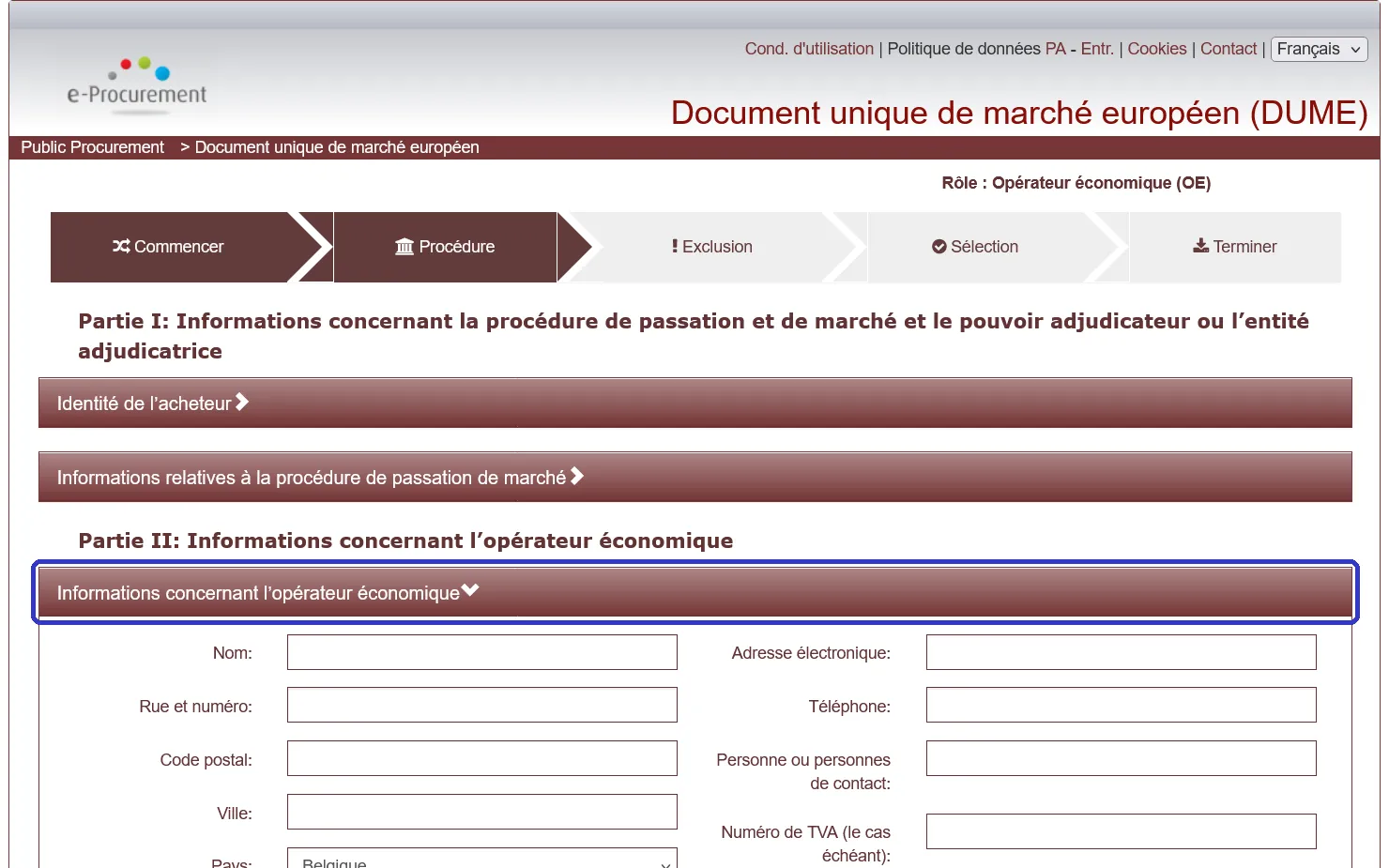
3. “Procédure”: your company details (name, address, VAT number, contact).
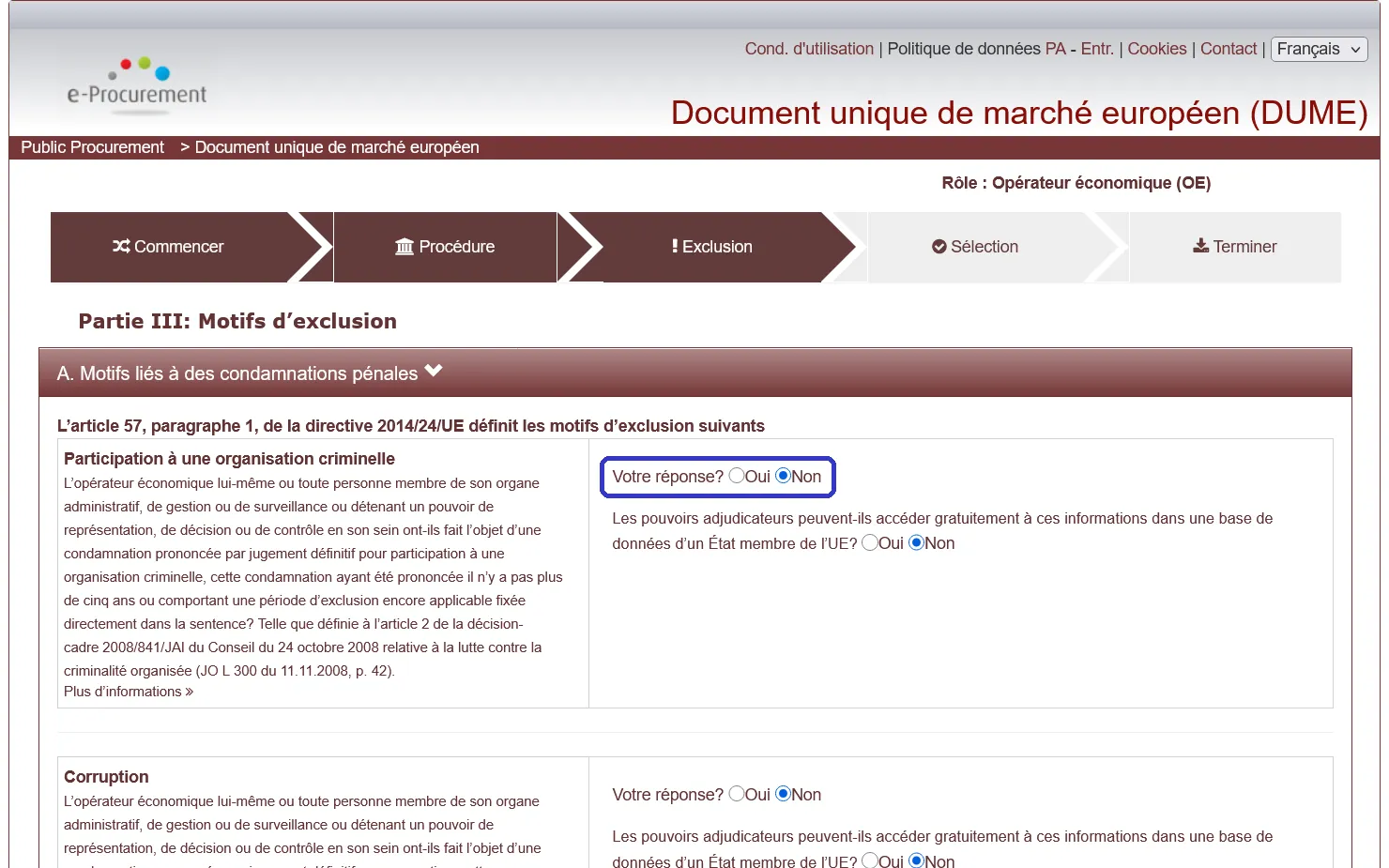
4. “Exclusion”: a Yes/No answer for each exclusion ground.
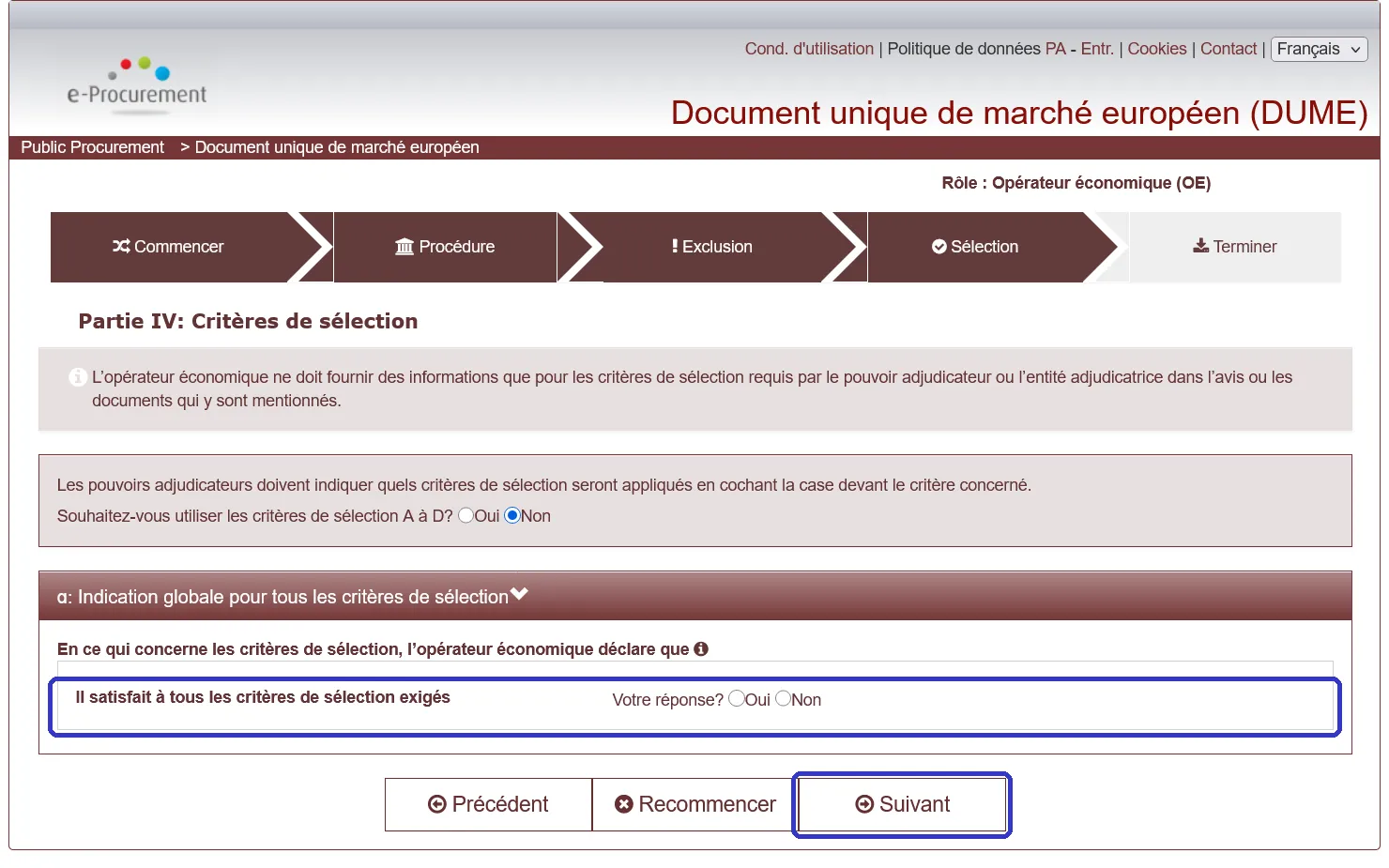
5. “Sélection”: declare that you meet the selection criteria the buyer asks for.
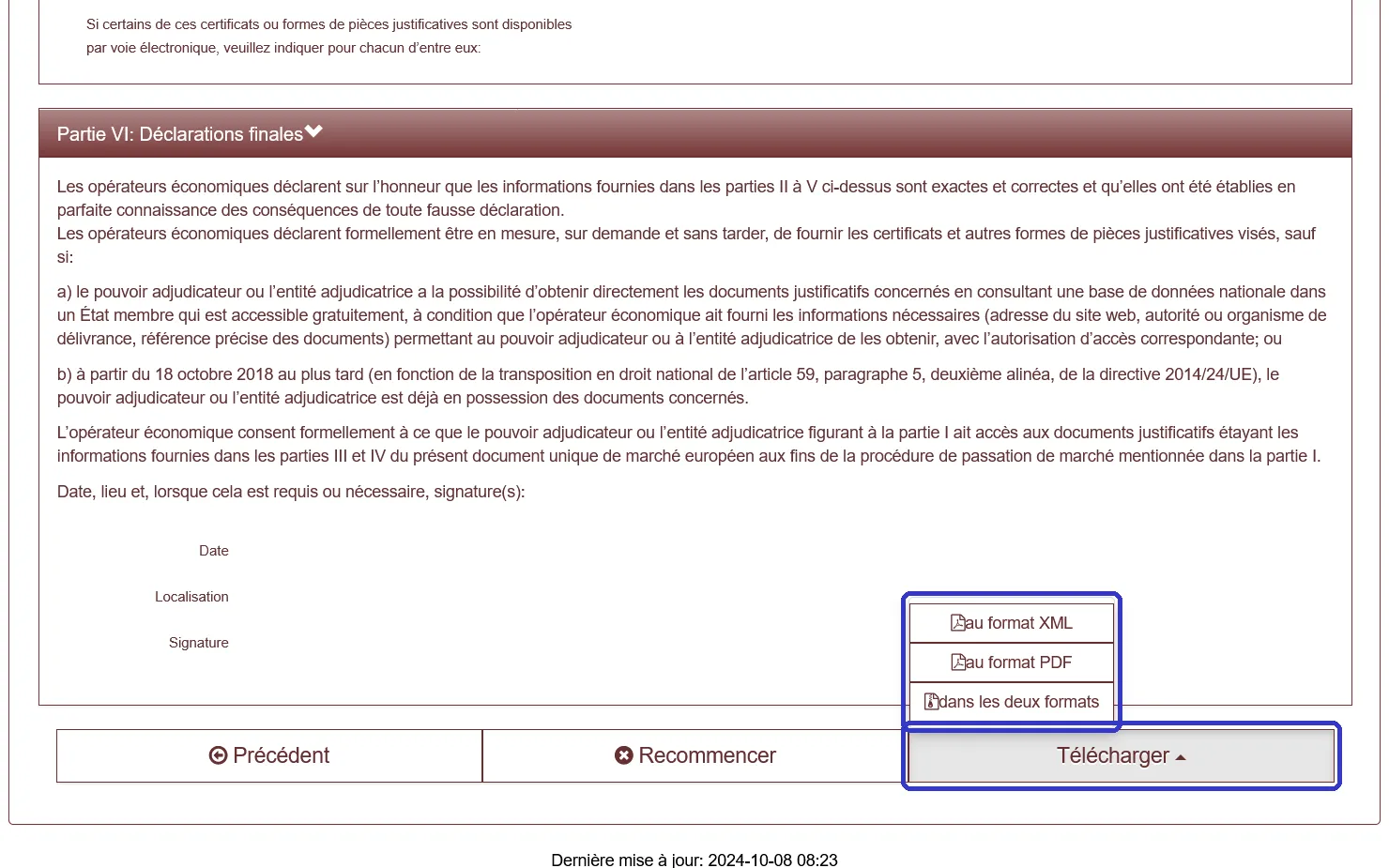
6. “Terminer”: “Télécharger” gives your ESPD as XML, PDF or both.
Final checklist
- Account created, company name exactly right
- Signature device tested on your computer
- Each file signed, Word and Excel with a token
- Simple file names, no special characters
- Certificates within the dates asked for
- Questions and compulsory steps done in time
- Complete offer submitted the day before
- Acknowledgement of receipt saved and kept
Need a check before you submit?
We can go through your file before you submit it: the documents, forms, ESPD, signatures and the upload. See our compliance check, or book a call with us. Price on quote.
Sources
- Electronic communication and bidding, Practical guide for companies, version 03.06 (PMP)
- Authentification et signature, marches.public.lu
- DUME, marches.public.lu
- Seuils, marchés de grande envergure, marches.public.lu
- EU/EEA Trusted List Browser, European Commission
- Service DUME, publicprocurement.be
- Portail des marchés publics (PMP), test tender 2501346: our own test submission and the screenshots in this guide
- eID software, eid.belgium.be
All sources retrieved on 8 November 2026.
Ask for an article
Missing a topic, or want more on something you read here? Tell us what you'd like to know. We write the article and email you once when it's published.
Prefer to write or talk?
Pick a free time in our calendar. You get an invite with a video call link.
✓ Thanks, we have your request.
We'll email you once when the article is published, at .